 PLC Copilot
Chat Management and History
Viewing and navigating past conversations.
PLC Copilot saves your chat sessions to your account. You can return to prior conversations without losing context.
Create a New Chat
To start a new conversation, either click the New Chat button next to the send button in the chat input area, or click the ⋮ button on top right corner and select New Chat.
Tip: Start a new chat frequently to save on credits. Longer conversations use exponentially more credits as the context grows. Read our guide on how to use AI credits efficiently.
Retrieving From History
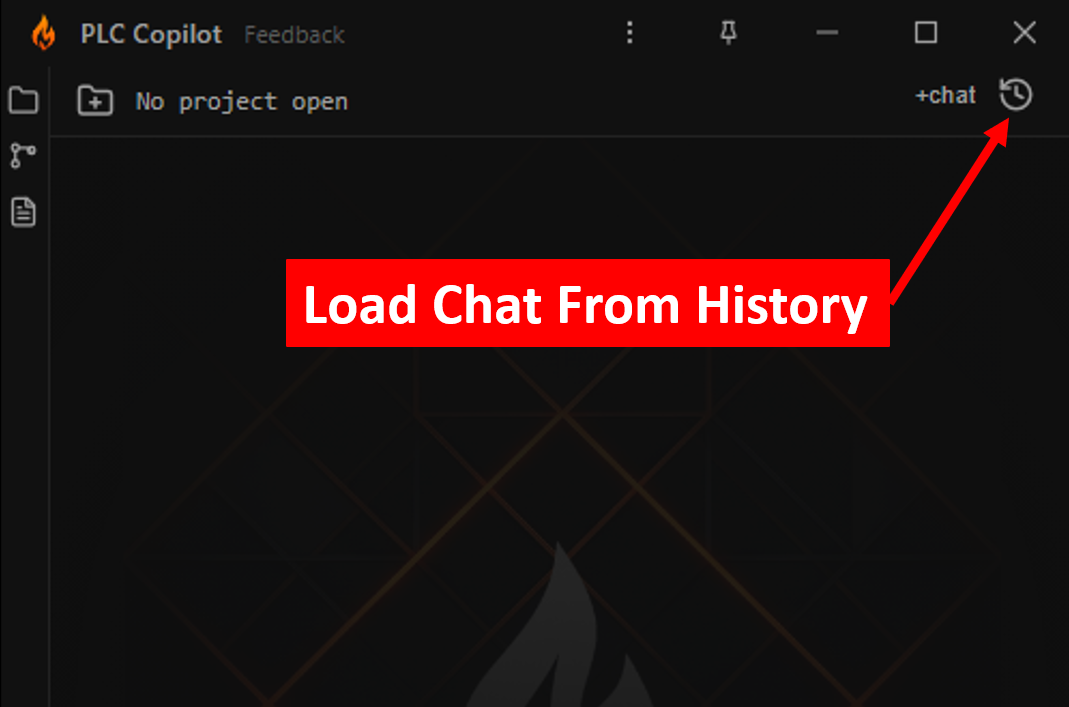
You can open a previous chat from your history by clicking the History icon in the top right corner, or by clicking the ⋮ icon and selecting Chat History. Select a session to reload its messages and continue where you left off.
History is saved on your local machine, so sessions persist across app restarts on the same machine.
What is Saved
- Your messages and the agent's responses
- Rung diagrams, generated code, and tag tables from prior answers
- The local file paths for the projects that were loaded when the session was active
Note: Because only the file path is saved in the chat history, the agent will read the current state of the project upon reopening, not a historical snapshot of what the code looked like in the past.
Missing Project Files
If the original export was moved, renamed, or deleted between sessions, the file will be marked as missing. If you open a past chat and PLC Copilot cannot find one of the previously loaded projects for that session, you will be prompted with two options:
- Replace: Opens a file browser so you can locate the moved file or select an updated version of the export.
- Ignore: Simply closing the dialog window allows you to continue the chat session without loading that specific project.
Export a Chat Transcript
Export the current conversation as a Markdown file for internal documentation, shift handoffs, or audit records.
This is especially useful when store or share the question and response conversation.
To export, click the ⋮ > Chat > Export Transcript.
Agent Feedback
We value your feedback. Use the Thumbs Up and Thumbs Down buttons under the agent's response messages to let us know how it performed.