 PLC Copilot
Logic Documentation
Keep controls narratives, cause-and-effect analyses, SOPs, and other technical notes in Documents so they outlast a single chat and stay easy to open, edit, and export.
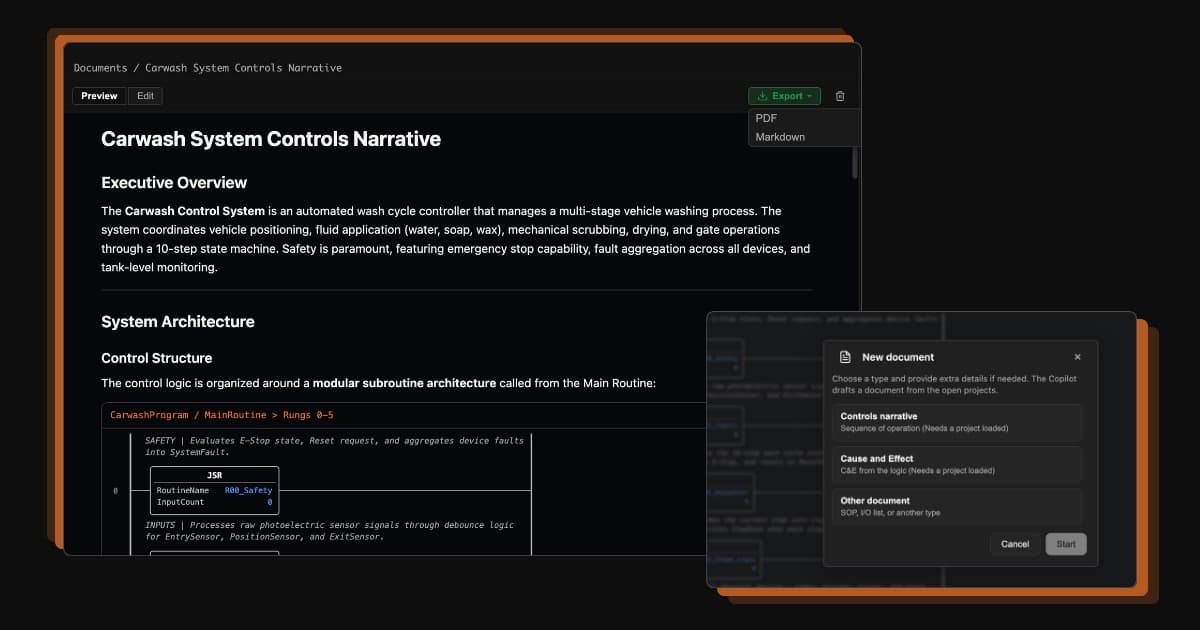
Documents are long-form writeups you keep in PLC Copilot. Use them for controls narratives, cause-and-effect analyses, standard operating procedures, and other technical notes you want to reuse. Reach for a document when the result should stay in your library, not as a one-off answer in the thread.
When to use Documents
Use Documents when you want durable documentation tied to your PLC work:
- A controls narrative for a line or cell
- A cause-and-effect analysis for critical logic
- A standard operating procedure (SOP)
- A troubleshooting or interlock explanation
- A custom technical note written in your own words
Use Chat for quick questions, debugging, and short explanations. Use Documents when you want the result easy to open, edit, and export later.
Opening Documents
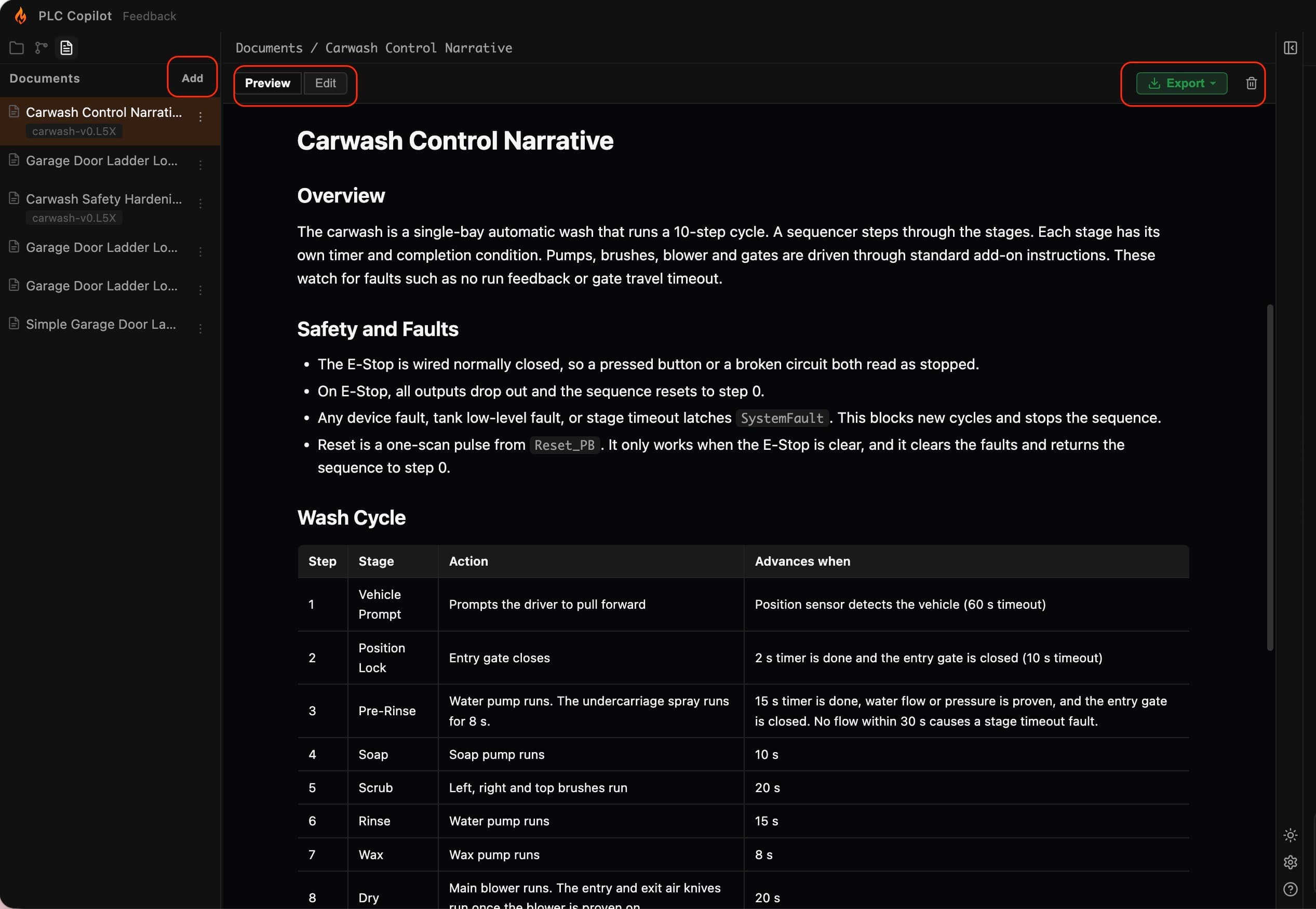
- Open the IDE sidebar.
- Select Documents.
- Saved documents appear listed by title.
- Select a document to open it in the viewer.
Until you create your first document, the list is empty.
Creating a document
Start from the Documents area or from chat.
From the Documents area
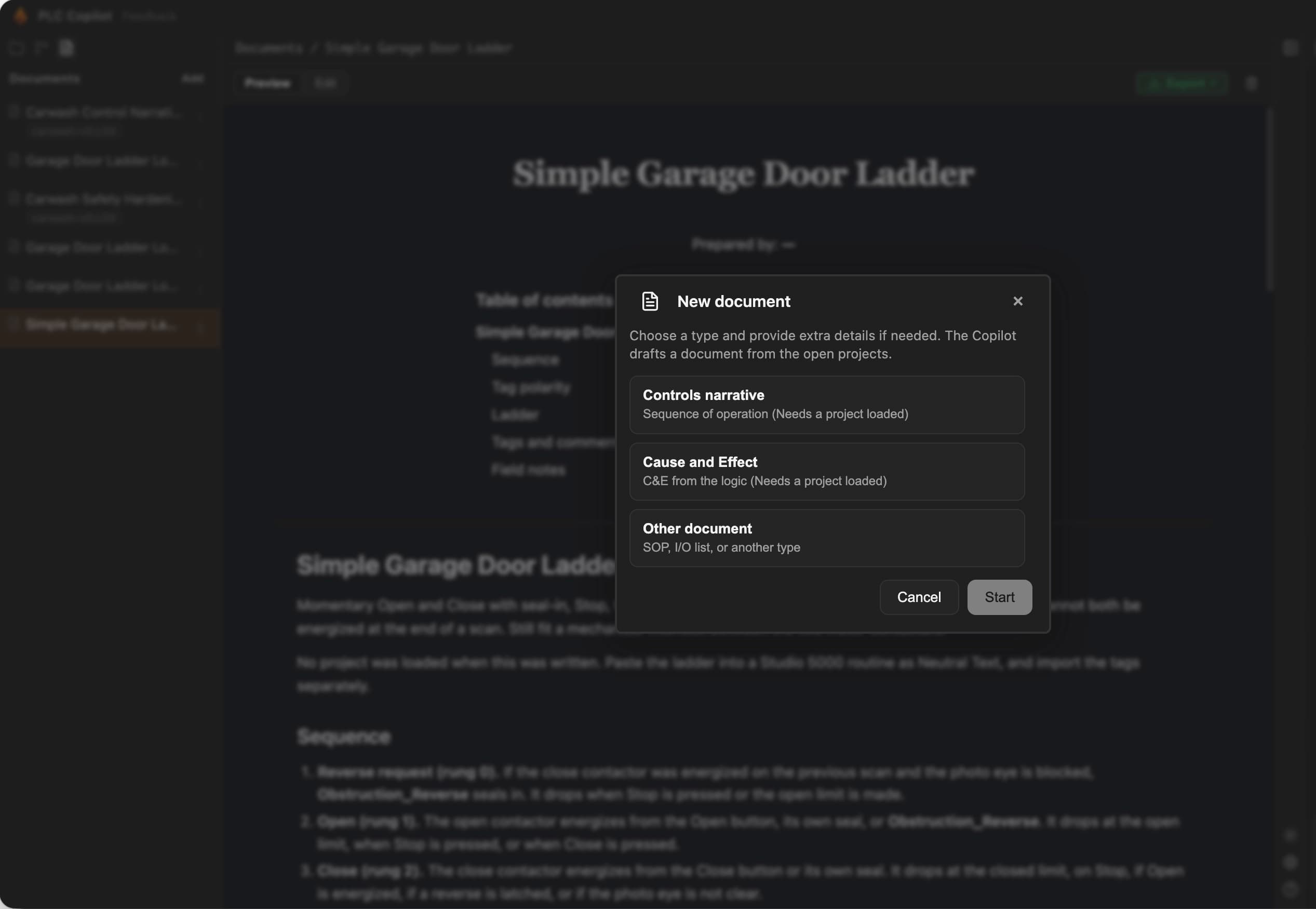
- In Documents, choose Add.
- Pick a type:
- Controls narrative — an overview of the project and its important features, grounded in the open program.
- Cause and effect — a summary plus a detailed analysis of critical behavior.
- Other — a writeup you describe yourself. Notes are required.
- Add notes if you want to steer scope, tone, or focus. Notes are optional for Controls narrative and Cause and effect.
- Select Start.
Start sends a message into chat. The assistant drafts the document from your open project. When the draft is ready, it opens in the document viewer.
From chat
Ask in plain language when you want something you will keep:
- “Write a controls narrative for this project.”
- “Create a cause-and-effect for the palletizer interlocks.”
- “Write an SOP for clearing a jam on this line.”
The assistant creates a Document when you ask for documentation to keep. A casual reply in the thread stays in chat.
Prompt examples
Open the project first. A useful prompt names the document type, the equipment or logic, and the rule that the draft may only describe what is in that program. If a tag, step, or setpoint is not in the logic, the document should say it is not defined there.
Controls narrative
Write a controls narrative for the open project.
Scope: this cell only.
Use only routines, sequences, and devices that exist in the program.
For each major sequence, state what starts it, what it does, and what ends it.
If a step is not in the logic, write "not defined in the program" instead of filling it in.
Do not invent tag names, setpoints, or alarm codes.
Cause and effect
Write a cause-and-effect for the interlocks in the open project.
For each interlock found in the logic: condition, what it stops or holds, and how it clears.
Use the tag names from the program.
If the reset path is not in the logic, say so.
Do not add interlocks that are not in this project.
SOP
Write an SOP for clearing a jam on this line, based only on the open project.
Order: checks before entering the cell, the clear steps that the logic supports, then how to restart.
Use device and tag names from the program.
If the program does not define a restart step, mark it as not defined instead of guessing.
Working with a document
Reading
Open a document from the list. The viewer renders markdown, including headings, lists, and code-style blocks.
Editing
Edit in the built-in editor. Changes save as you work.
While the assistant is still updating that document, editing and delete stay unavailable so your changes do not collide with the draft in progress. Export stays available during that time.
Deleting
Remove a document from the Documents list when you no longer need it. Confirm the deletion if the app asks you to.
Export
Export when you need a copy outside PLC Copilot.
- PDF — a fixed layout for printing or sharing.
- Markdown — a file for other tools or version control.
Cover page
PDF preview and print can start with an optional cover page:
- Document title
- Created by
- A table of contents built from the document headings
Turn the cover on or off in document settings. Markdown export omits the cover page.
Created by
If you have not set a custom value, the cover shows your signed-in name. Set Created by in the editor to override that default.
Linking a document to a project
When you create a document with a project open, PLC Copilot can associate the writeup with that project so it is clear which program or line it belongs to.
If several projects are open, the assistant may ask which one to use. Documents are written from your PLC work.
Chat and Documents together
- Add in Documents starts a normal chat turn. Continue there if the assistant asks for clarification.
- In chat, the assistant can link to a document so you can open it from the conversation.
- After creation, the Documents list is where you find and manage saved writeups.
Where documents live
Documents are stored in your local library on this computer. They stay on that machine when you sign out. Manage them from the Documents list, and export when you need a copy elsewhere.
Tips
- Open the project you care about before you start a narrative or cause-and-effect.
- Use Other with a short, specific brief when the built-in types do not fit.
- Review and edit every draft before you treat it as official documentation or share an export.
- Export PDF for customer or audit packages. Export markdown when you will keep editing outside the app.