 PLC Copilot
Project Explorer & Logic Viewer
Browsing and inspecting your project structure and logic visually.
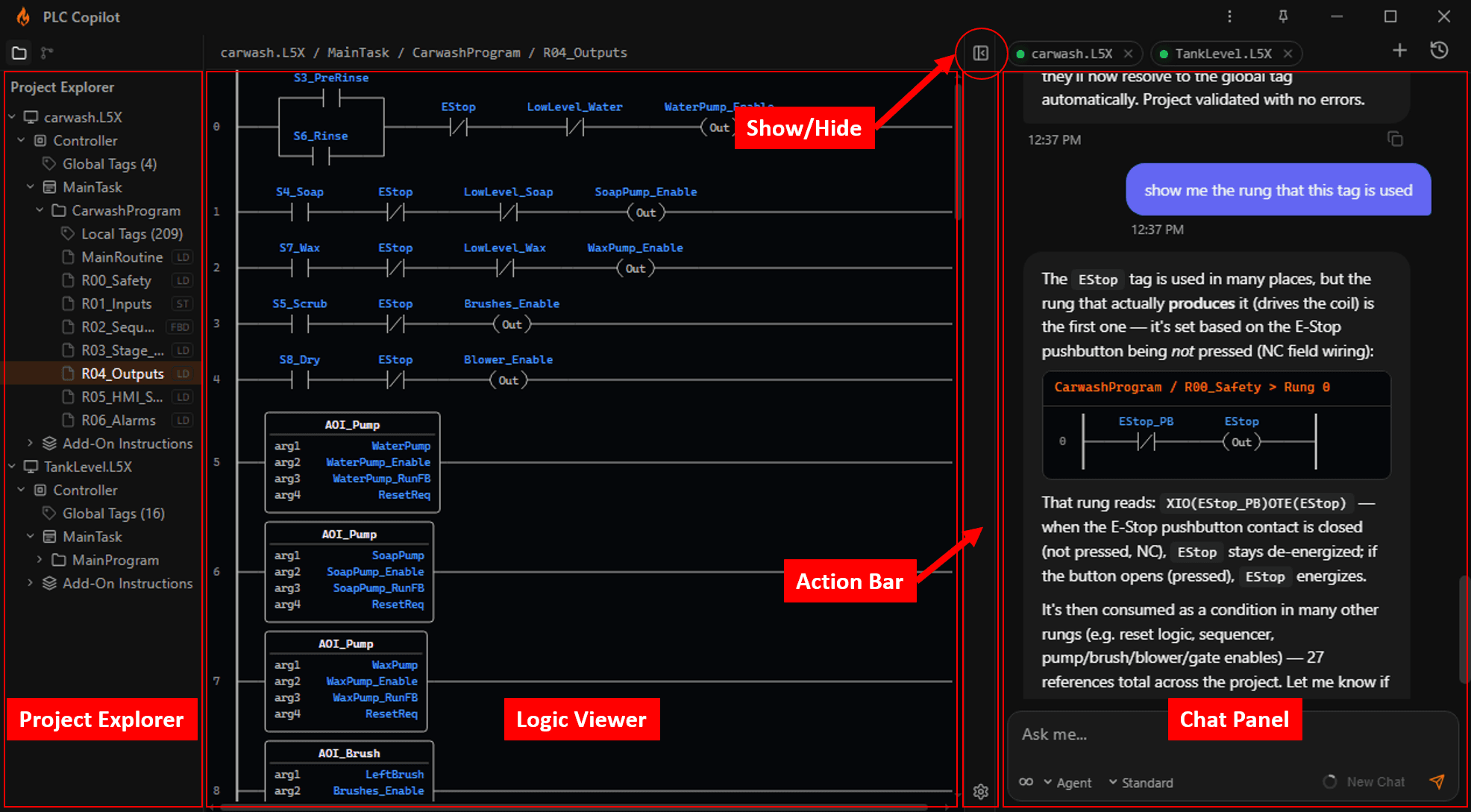
PLC Copilot’s workspace includes a Project Explorer (left) and a Logic Viewer (center) so you can browse and inspect a loaded project exactly the way you’d navigate a controller tree.
Together, they allow you to see exactly what the AI sees, including programs, routines, and tags, without leaving the application. Both panes are read-only for visual inspection; all project edits are still handled safely through Agent Mode in the chat.
Workspace Layout
When a project is open, the workspace is laid out from left to right:
- Project Explorer: The structural tree of your loaded project.
- Logic Viewer: Displays the currently selected routine or tag list.
- Action Bar: A narrow strip with tools to show/hide panes and access Settings.
- Chat: The conversational AI interface.
Managing the view:
- Show / Hide: Use the toggle in the action bar to show or hide the explorer and viewer together. Hiding them gives you a focused, chat-only layout.
- Resize: Drag the dividers between the panes to adjust their width. The application remembers your size preferences.
- Open Automatically: Loading a project automatically expands the explorer and viewer. They remain closed if your workspace is empty.
(Note: At the top of the sidebar, you can switch between the Folder icon for the Project Explorer, and the History icon for Project Backups).
Project Explorer
The Project Explorer allows you to navigate the hierarchical structure of your controller. (Note: Browsing is available for supported project formats. If a loaded format does not yet support visual browsing, the explorer will display a message).
- Expand/Collapse: Click a folder to open or close it. On first load, the tree automatically opens down through your tasks and programs.
- Descriptions: Hover over a folder to see its description, if one is included in the project.
- Counts: Tag folders display an item count (e.g.,
Global Tags (128)). - Opening Items: Click a leaf node (a specific routine or tag list, not a folder). It will open in the Logic Viewer, and a breadcrumb navigation trail will appear at the top (e.g.,
MyProject / MainTask / MainProgram / MainRoutine).
Routine Type Badges
Routines in the tree display a badge indicating their programming language:
| Badge | Meaning |
|---|---|
| LD LAD | Ladder Logic |
| ST SCL STL | Structured Text |
| FBD | Function Block Diagram |
| SFC | Sequential Function Chart |
| SEQ | Sequence Diagram |
Staying in Sync
The tree refreshes automatically if you open or change projects. If the project file on your local disk changes and PLC Copilot auto-reloads it, the explorer updates instantly, and the viewer refreshes whatever you currently have open.
Logic Viewer
The Logic Viewer displays the item you selected in the Project Explorer.
Supported Views
- Ladder Logic (LD or LAD): Displayed as a graphical ladder diagram.
- Function Block Diagram (FBD): Displayed as a graphical diagram showing blocks, wires, and connections.
- Structured Text (ST or SCL or STL): Displayed as source code with syntax highlighting.
- Tags: Opens a filterable data table for global tags or local-scope tags.
- Columns: Name, Data Type, Type, Usage, Alias For, Dimensions.
- Filtering: Use the Filter tags… search box to quickly match names, data types, or aliases.
The visual representation of Ladder Logic and Function Block Diagram routines may differ from your original IDE due to differences in wiring style and element ordering. However, the underlying logic is guaranteed to be identical.
How This Fits With Chat
The Explorer/Viewer and the Chat are designed to be used together.
| Use the Explorer & Viewer when you want to... | Use the Chat when you want to... |
|---|---|
| Navigate by the project's physical structure | Have the AI explain or troubleshoot logic |
| Visually inspect a routine or tag list | Apply edits, generate code, or rename tags (Agent Mode) |
Remember: Browsing never changes the project file. All edits are driven through chat requests. If you need to revert a file version, use the Project Backups panel in the sidebar, not the Project Explorer.
Quick Tips
- Side-by-Side Workflow: Use the explorer to locate a routine, then leave it open in the Logic Viewer while you ask the AI questions about that specific logic.
- Maximize Space: Hide both left panes from the action bar when you just want to talk to the AI, and bring them back when you need to inspect the results visually.