 PLC Copilot
Automatic Project Backups
How PLC Copilot automatically saves snapshots of your project files.
PLC Copilot acts as a safety net by automatically keeping snapshots of your project files. If the AI agent makes an undesired change, you can easily restore a previous version of your file without losing your current chat context.
Automatic backups are turned on by default.
How Backups Work
What gets backed up: PLC Copilot creates full copies of your loaded project file (for example, your exported .L5X file) at specific points in time.
Note: Restoring a backup only reverts the project file, not your chat conversation.
When backups are created: A new snapshot is taken only when the project file has changed compared to the latest backup, and one of the following occurs:
- You open or load the project.
- You send a chat message (the snapshot of the project state before the message).
PLC Copilot does not create a backup on every keystroke or mid-turn edit. If the file hasn't changed since the last snapshot, it skips creating a duplicate.
Where they are stored:
Backups are saved locally next to your original project file in an automatically generated folder named .plc-copilot-backup.
(If you turn backups off, this folder will no longer be created).
Finding and Restoring Backups
There are two ways to revert to a previous version of your project:
1. The Project Backups Panel
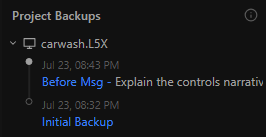
In the left sidebar, click on Project Backups (located next to Project Explorer). This panel lists the backup history for each open project, with the newest snapshots at the top.
You can identify the state of each backup using the visual indicators:
- Filled Circle: This backup perfectly matches the current state of your project file.
- Empty Circle: This is an older snapshot available to restore.
Backup Labels Explained
| Label | What it means |
|---|---|
| Initial Backup | The very first backup taken when the project was loaded. |
| Change detected - Auto backup on load | The file changed outside the agent; captured when you loaded/opened the project. |
| Before Msg - [preview] | Snapshot taken right before you sent that specific chat message. |
| Recovered by user | A snapshot created immediately after you successfully restored a previous version. |
To restore from the panel: Click the backup you want to revert to and confirm. PLC Copilot will overwrite the current project file on your disk with that version.
2. Revert from Chat
For messages sent during your current session, you may see a revert icon directly on your message bubble. Clicking this restores the project to the exact state it was in right before you sent that message.
Note: Older chats loaded from history typically do not show the revert button in chat; use the Project Backups panel instead.
Settings and Limits
By default, PLC Copilot keeps a rolling window of your last 20 backups. When you hit the limit, the oldest snapshots are deleted to make room for new ones.
You can configure these limits by going to Settings → Project backups:
- Project backups: Turn the automatic backup system on or off. (If turned off, existing
.plc-copilot-backupfolders are left alone). - Backups to keep: Choose how many versions to retain (between 1 and 100).
Important Notes
- Not Long-Term Version Control: Backups are a rolling window designed for active undo/redo during a session. If you need to keep a version permanently, make your own copy of the project file outside of PLC Copilot.
- Chat Context: Chat history is never rolled back with a file restore.
- Folder Permissions: Backups persist across application restarts. However, if your project folder is read-only or not writable by the application, backups may fail.