 PLC Copilot
Multi-Project Workspaces
Working with multiple PLC projects at once.
Learn how to load multiple PLC projects into a single workspace for cross-referencing or open independent sessions on PLC Copilot.
Multi-Project Workspaces
A single workspace can hold up to 5 project files at the same time. The agent has access to all loaded projects simultaneously, but it can distinguish them from each other. It knows exactly how to find the answer in the relevant project, allowing you to seamlessly cross-reference tags and routines across your entire loaded workspace.
This multi-file context is especially helpful when:
- Upgrading legacy code: Load the old machine program alongside your new template to translate logic.
- Complex systems: Troubleshoot an assembly line or cell made up of multiple PLCs working together and passing interlocking signals back and forth.
How to Load Multiple Projects in PLC Copilot
- Open your first project with Title Bar → Open Project.
- Click Open Project again to add another export to the same workspace.
- Each project shows in the workspace with its own status indicator. The project tree is also separately shown in the Project Explorer for supported project types.
You may ask questions that span projects, for example, comparing interlocks between two machine programs or tracing a consumed tag back to the producer PLC.
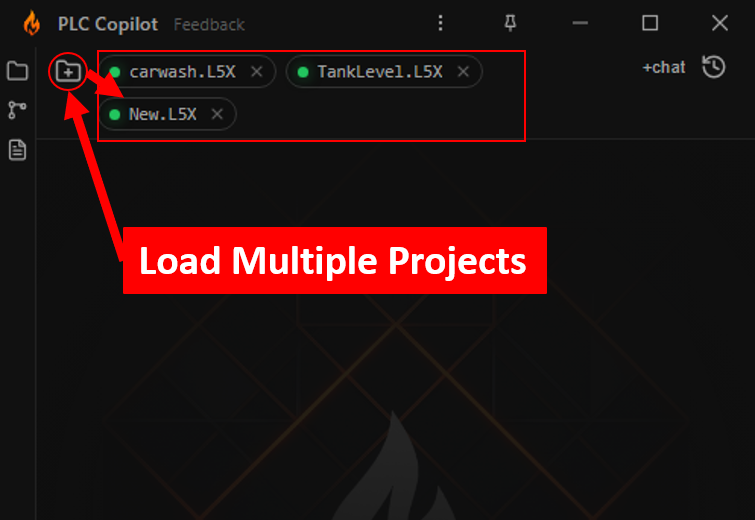
Multi-projects feature is not available for trial users.
Independent App Instances
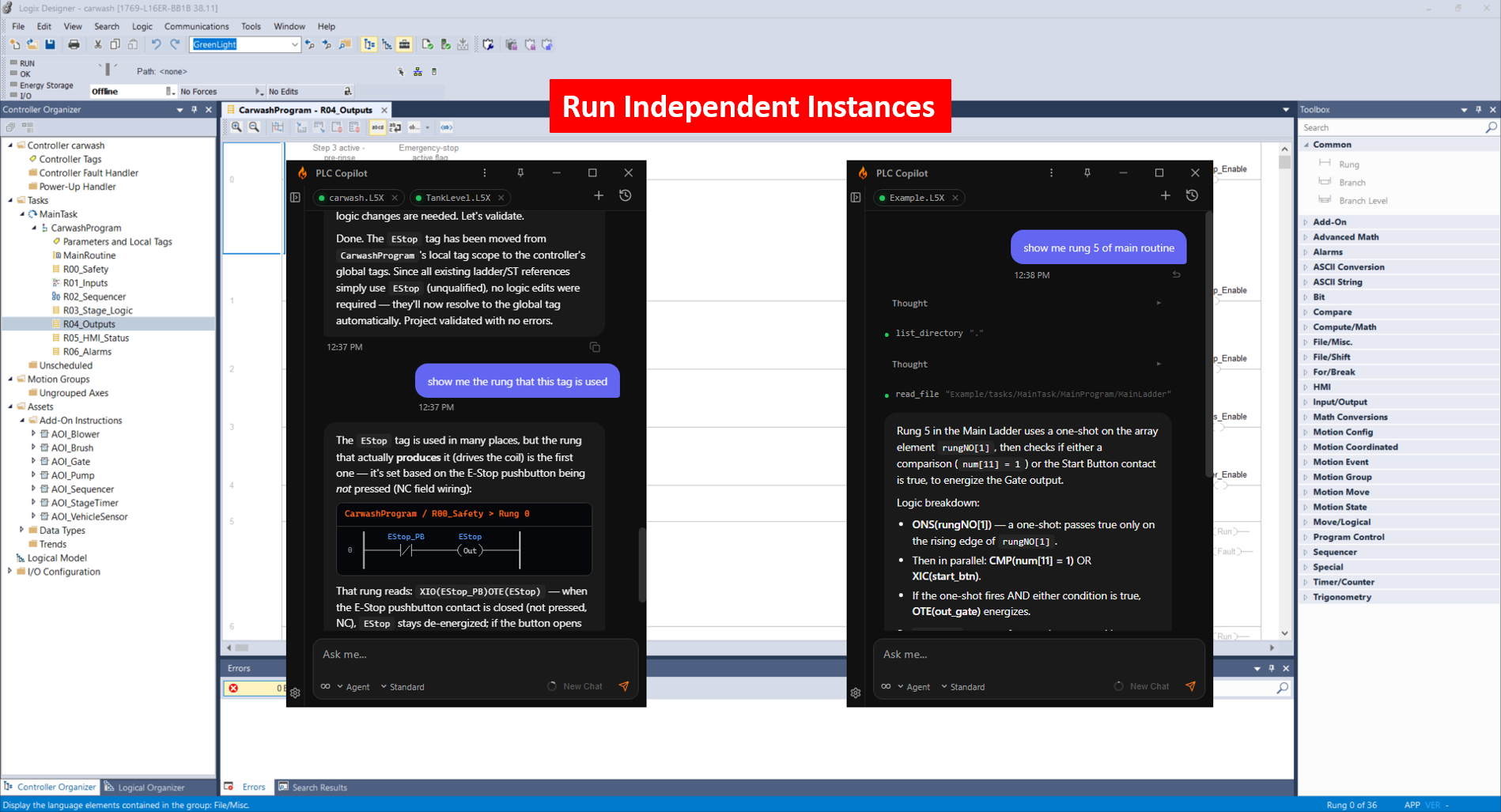
You can open multiple instances of PLC Copilot at the same time. Launch the application again from the desktop shortcut to open a second window.
Each window operates completely independent of the others with its own separate context and workspace. This is useful when:
- Comparing two different customer projects side by side without mixing their contexts.
- Keeping a stable reference machine open in one window while actively editing a new machine in another.
- Running parallel sessions on completely unrelated PLC projects.
Auto Sync Multiple Projects
PLC Copilot is constantly watching for changes across all loaded projects. If you modify a project and overwrite the exported file on your local drive, the auto-sync feature instantly detects the change and updates the workspace. The AI always responds based on the absolute latest status of your project files.
Auto Backup Multiple Projects
When the AI applies automated edits to your files, you never have to worry about losing your original work. PLC Copilot automatically keeps track of changes for each loaded file and creates an automatic backup as those files change, ensuring you always have a safe restore point.
Restoring History for Multiple Project Sessions
Your loaded files are tied directly to your chat history. When you open a previous chat from your history, the chat management system looks at the projects that were loaded during the last message of that session.
It will automatically find those exact files on your local drive and reload them into the workspace. If a file has been moved or deleted since your last session, PLC Copilot will prompt you to either locate and replace the missing file, or ignore it and continue without it.
Tips
- Load only the projects you need. Smaller workspaces use fewer credits and respond faster.
- Use separate windows when projects are unrelated to keep your chat context clean.