 PLC Copilot
Productivity Suite Quickstart
Get started with PLC Copilot and AutomationDirect.
This guide covers loading a Productivity Suite project in PLC Copilot to explain, search, and document ladder logic.
Advanced Features
The following features are supported for Studio 5000.
Agentic logic edit and viewer pane are not supported for Productivity Suite files.
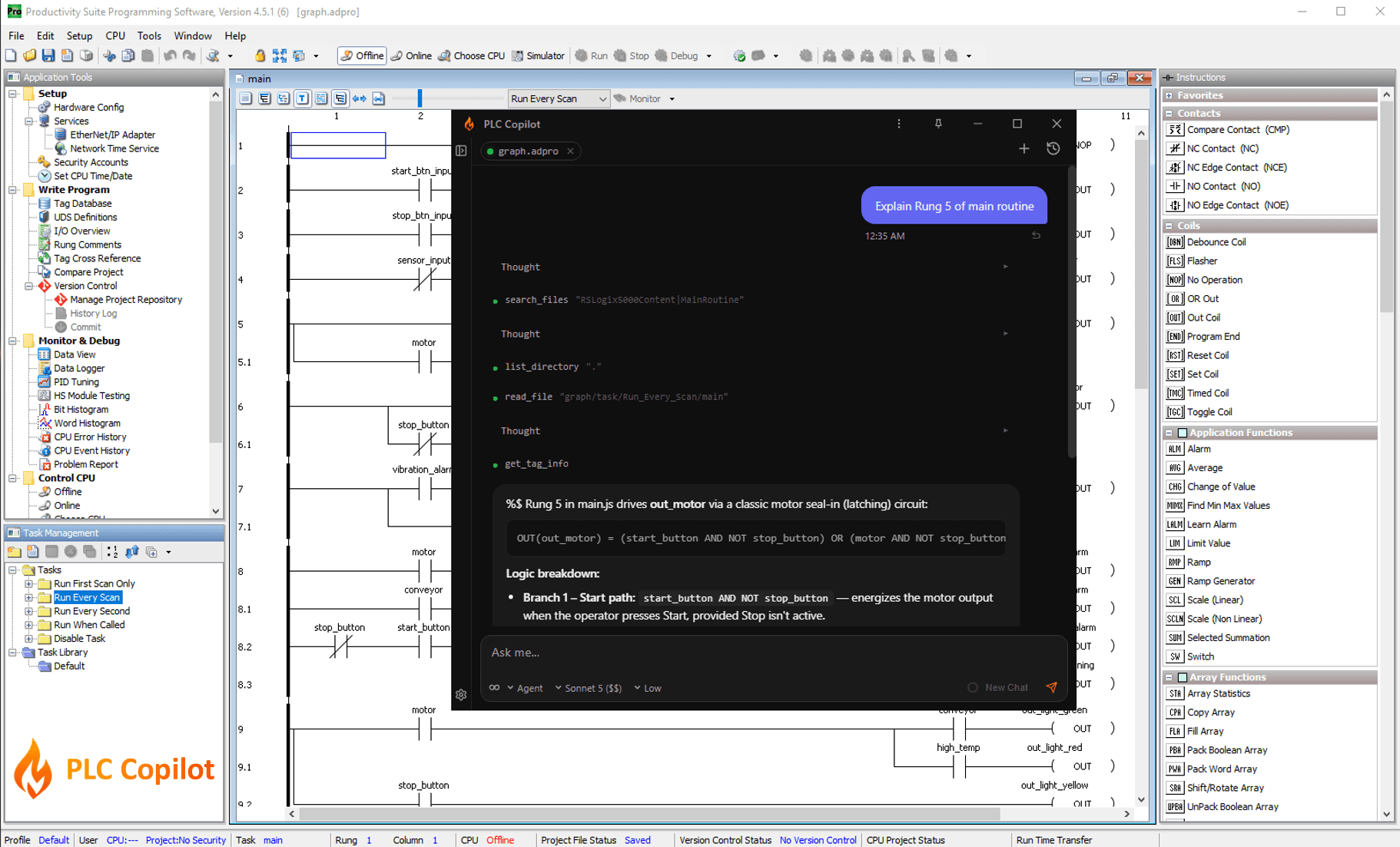
Step 1: Export from Productivity Suite
Save or export your project as an .adpro file.
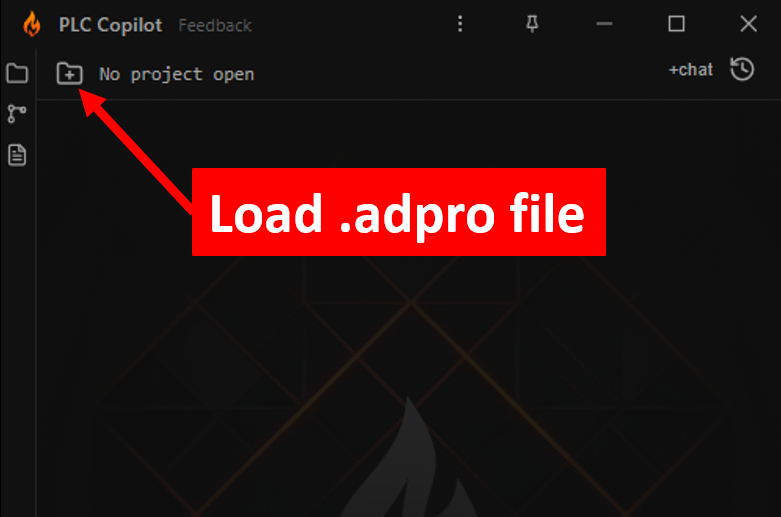
Step 2: Open in PLC Copilot
- Click Title Bar → Open Project
- Select your .adpro file
- Wait for the green indicator, the project is loaded
Step 3: Explore the program
Ask questions in plain English:
- "What does this routine do?"
- "Where is Conveyor_Run used?"
- "Explain the start/stop sequence for the filler."
- "Search for all references to Fault_Reset."
PLC Copilot reads ladder routines, cross-references tags, parses routines, and deciphers the findings in plain language.
Step 4: Keep your project in sync
After changing your project in Productivity Suite, re-save the .adpro to the same path by simply pressing Ctrl + S
PLC Copilot is constantly watching the loaded file for updates, if a change observed it will automatically reloads the latest state of your project. You may see the status indicator turning yellow briefly and a message shown in the chat. This update should take only a few seconds and moving forward, the AI Agent is fully synced and will base all future responses on the latest state of your project.