PLC Copilot
Studio 5000 Quickstart
Get started with PLC Copilot and Studio 5000.
This guide covers the full workflow: export from Logix Designer, chat in PLC Copilot, and bring proposed logic back into Studio 5000.
PLC Copilot is an independent application and is not affiliated with Rockwell Automation.
Advanced Features
The following features are supported for Studio 5000.
Step 1: Export from Logix Designer
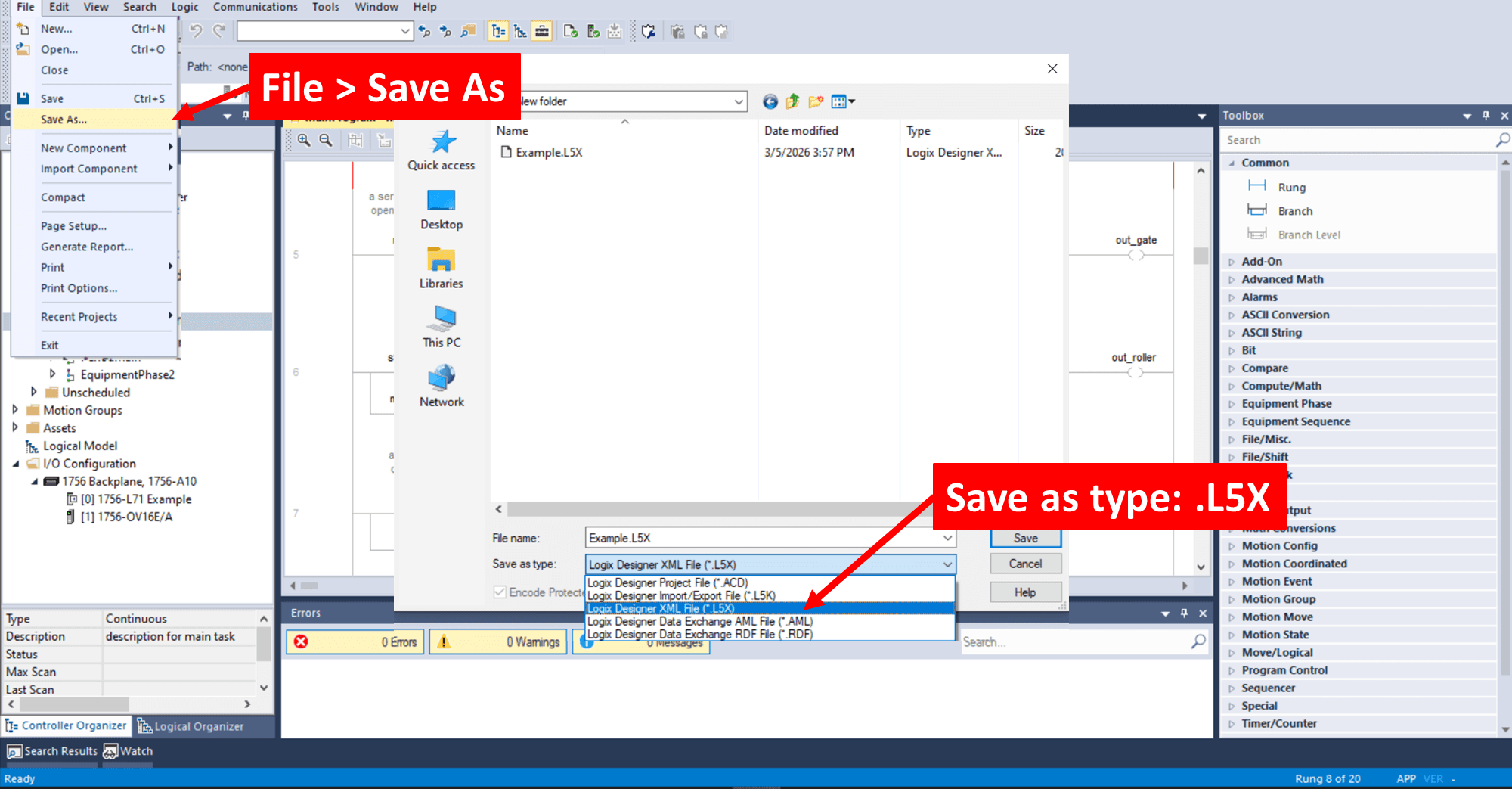
In Logix Designer: File → Save As, choose L5X, and save the controller export.
Use Studio 5000 v38 export format when possible. PLC Copilot is trained on v33+ of L5X files, loading older versions may cause unexpected behavior.
Upgrading older projects
If you have an .L5K file or an older RSLogix 500 project format, open the project in newer version of Studio 5000 and re-export it as an .L5X file.
Studio 5000 can seemlessly upgrade your project file.
See Rockwell’s official guidance: Converting PLC-5 or SLC 500 Logic to Logix-Based Logic.
Step 2: Open in PLC Copilot
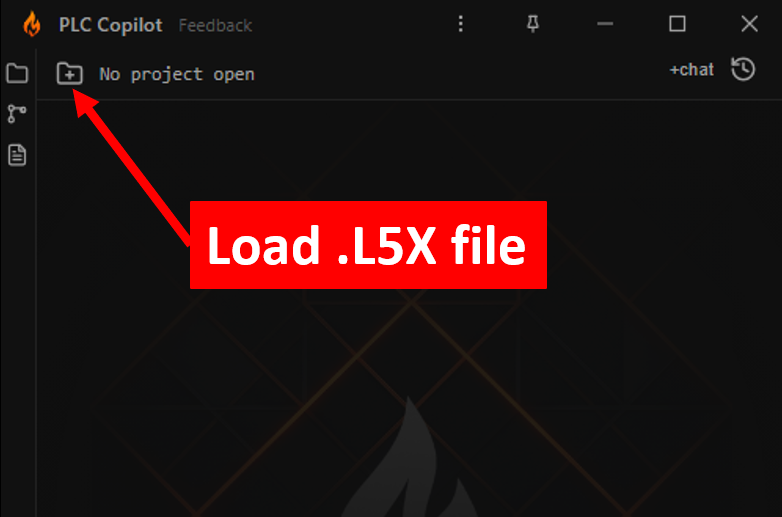
- Click Title Bar → Open Project
- Select your .L5X file
- Wait for the green indicator in the top-left, the project is loaded
Tip: use the pin icon (top-right) to keep PLC Copilot on top while you work in Logix Designer.
Step 3: Ask questions
With your project loaded, ask about Ladder Logic, Function Block Diagrams, Structured Text, tags, tasks, and more. Your questions can be as board or narrow as desired. Example prompts:
- "Give me a controls narrative of this project"
- "Which tags have to be true for Valve_Open to energize?"
- "Where is Tank_Level used?"
Answers cite specific rungs and routines so you spend less time hunting through Logix Designer.
Step 4: Generate LD, FBD, ST, Tags, And Comments
PLC Copilot can generate and document your logic across two primary operating modes:
- Ask Mode: A conversational interface where the AI acts as a reference assistant. It outputs generated code, tags, and explanations directly in the chat for you to review and manually copy over.
- Agent Mode: An autonomous workflow where PLC Copilot actively executes multi-step tasks, such as directly editing routines, tags, and comments inside your loaded L5X file.
Regardless of mode, PLC Copilot supports Ladder Logic (LD), Function Block Diagrams (FBD), Structured Text (ST), as well as controller/program tags and documentation.
PLC Copilot is an AI agent and can make mistakes. Always verify logic and run a full verification/compilation in Logix Designer before deploying to a physical controller.
Step 5: Keep Your Project in Sync
Since PLC Copilot works with exported files rather than a live connection, it is important to keep the agent and your main project file synchronized as you make changes.
From PLC Copilot to Studio 5000
PLC Copilot does not modify proprietary binary .ACD files directly. When the AI applies automated edits in Agent Mode, it updates the exported .L5X file. To apply these changes to your master project, you need to open the modified .L5X file back in Studio 5000:
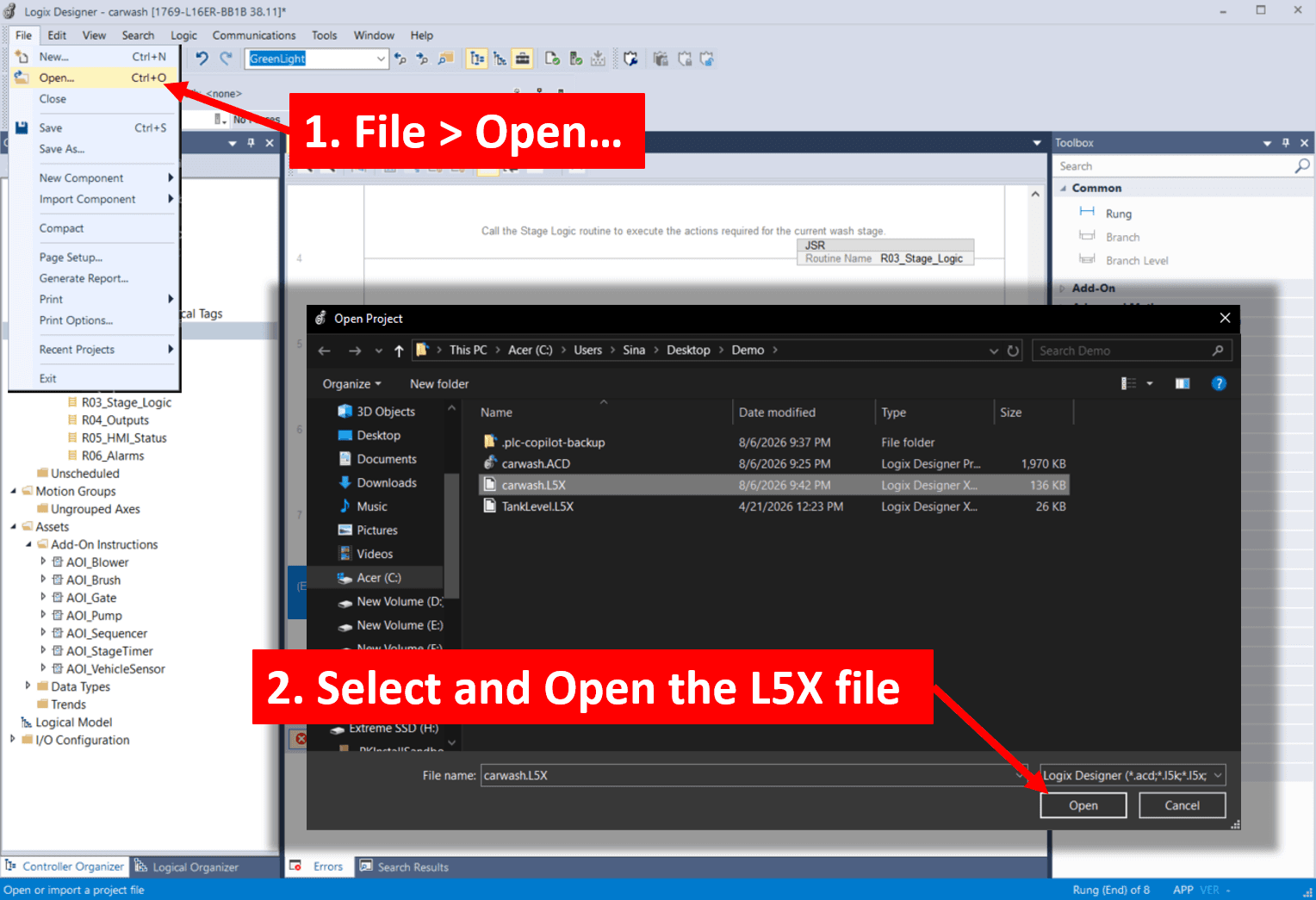
- In Studio 5000, go to File > Open...
- Select the updated .L5X file.
From Studio 5000 to PLC Copilot
If you make manual logic or tag changes inside Studio 5000, you need to update the AI's context so it doesn't work from outdated information.
- Save your project in Studio 5000 and export the updated .L5X to the exact same file path as your original export.
- PLC Copilot watches this directory and will automatically sync the changes as soon as the file is overwritten.
- You will see the status indicator turn yellow briefly while the new export loads. Then a message will be shown in the chat, indicating the update.
Once the indicator clears, the AI Agent is fully synced and will base all future responses and actions on the latest state of your project.
Manually Copy Ladder Logic from PLC Copilot to Studio 5000
When using Agent Mode, PLC Copilot automatically applies ladder logic edits directly to your loaded L5X file, no manual copy-pasting required.
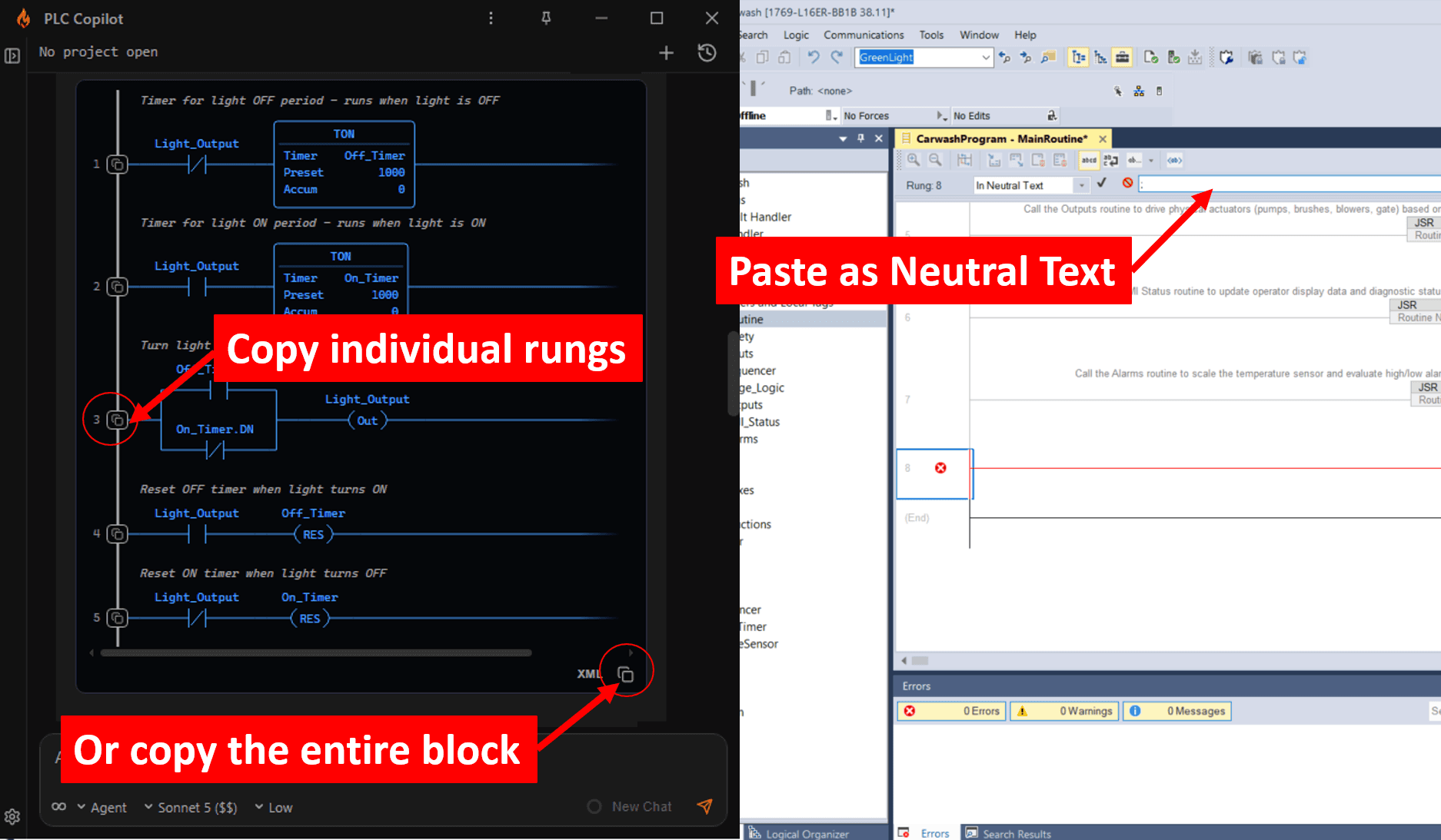
When generating Ladder Logic in Ask Mode, PLC Copilot formats the output so it can be pasted directly as Neutral Text into Logix Designer.
- Copy the logic from PLC Copilot using one of two methods:
- Entire Routine/Block: Click the Export button at the bottom of the code block to copy all generated rungs at once.
- Single Rungs: Click the Copy icon on the left side of any individual rung.
- In Logix Designer, open your target routine.
- Double-click the empty rung area, press
Ctrl+V(or right-click and select Paste ASCII / Neutral Text), and press Enter to accept the rung edits.
Manually Copy Tags and Comments to Studio 5000
In Agent Mode, PLC Copilot can automatically write tag definitions, aliases, and rung comments directly into your loaded L5X file.
However, if you are using Ask Mode, or if you instruct the agent not to modify your files directly, PLC Copilot will generate tags and comments as a structured table ready for import:
-
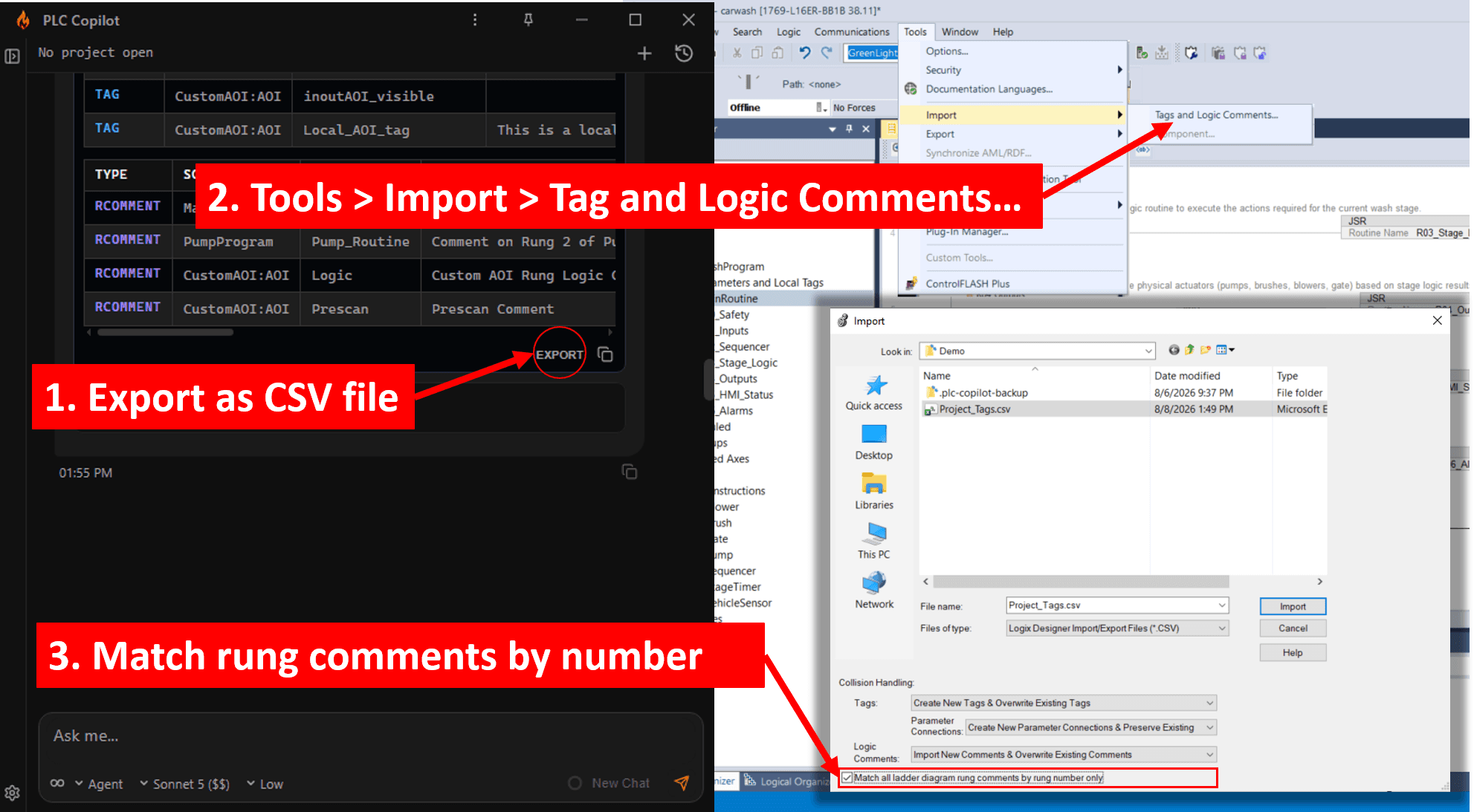
Click the Export button below the generated table to download the file as a CSV.
-
In Logix Designer, go to Tools → Import → Tags and Logic Comments.
-
Select your downloaded CSV file and complete the import wizard.
- For tags, you may choose Overwrite existing or your preferred merge option during the import prompt.
Note: For rung comments, ensure you check the option: Match all ladder diagram rung comments by rung number only.