 PLC Copilot
TIA Portal Quickstart
Get started with PLC Copilot and Siemens TIA Portal.
This guide covers the full workflow: open your project in TIA Portal, connect it in PLC Copilot, ask questions, and transfer proposed logic back into TIA Portal.
Supported project files are .ap17 through .ap21. The number is the TIA Portal version: a .ap21 file is a TIA Portal V21 project, a .ap20 file is V20, and so on.
PLC Copilot is an independent application and is not affiliated with Siemens.
Advanced Features
The following features are supported for TIA Portal.
Before you start
PLC Copilot does not open the project by itself. TIA Portal has to be running, with that exact same project already loaded. PLC Copilot attaches to that session and reads the PLC blocks, tags, and data types from it.
Requirements:
- TIA Portal Openness must be installed. It is an option in the TIA Portal setup.
- One-Time User Setup Your Windows user must belong to the local group Siemens TIA Openness.
The first time you open a TIA project, PLC Copilot can automatically set things up for you. During this process, Windows may ask for administrator permission and you'll need to sign out of Windows and back in once so the change takes effect. If TIA Portal shows an access dialog, choose Yes to all. See Troubleshooting.
Step 1: Open the project in TIA Portal
- Start the TIA Portal version that matches the file (V21 for .ap21, V17 for .ap17, and so on).
- Open your desired project in TIA Portal and wait until it is fully loaded.
- Make sure TIA Portal is not online with your PLC.
Use the project file itself (.ap17–.ap21), not a .zap archive. A .zap file is a compressed backup. If you have a .zap file, unpack it in TIA Portal first, then open the resulting project file in PLC Copilot.
Step 2: Open the same project in PLC Copilot
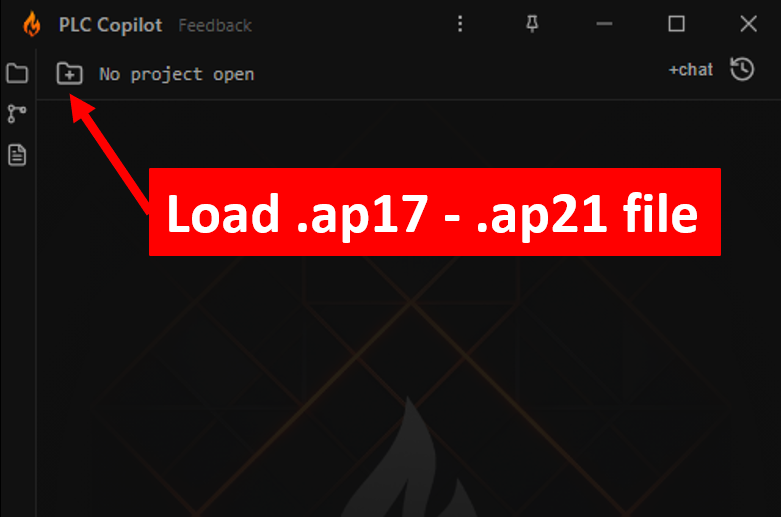
- In PLC Copilot, click Title Bar → Open Project.
- Select the exact same .ap17–.ap21 file that is open in TIA Portal. The path has to match.
- The first time on this computer, complete the one-time Windows setup below.
- Wait for the green indicator next to the project name.
The first load can take a few minutes. PLC Copilot asks TIA Portal to compile the project, then reads blocks, tags, and data types. A failed compile does not stop the load, but a block that is inconsistent in TIA Portal cannot be viewed until you compile it there.
One-time Windows setup
The first open shows One-time setup for TIA Portal.
- Approve the Windows administrator prompt. PLC Copilot adds your Windows user to the Siemens TIA Openness group. TIA Portal requires that group before an external application can connect.
- If PLC Copilot then asks you to sign out of Windows, sign out and back in (a restart also works).
If TIA Portal shows an access-permission dialog while connecting, choose Yes to all.
If this setup does not complete, see Troubleshooting or contact us.
Alternatively, see Siemens’ official guidance: Adding users to the Siemens TIA Openness user group.
Step 3: Ask questions
With the project loaded, ask about ladder (LAD), function block diagrams (FBD), SCL, PLC tags, PLC data types, and blocks (OB, FB, FC, DB). Questions can be as broad or as narrow as you like. Examples:
- "Give me a controls narrative of this project"
- "Which conditions have to be true for Valve_Open to energize?"
- "Where is Tank_Level used?"
Answers cite specific blocks and networks, so you spend less time hunting through TIA Portal.
The visual representation of LAD and FBD networks may differ from TIA due to differences in wiring style and element ordering. However, the underlying logic is guaranteed to be identical.
Step 4: Generate logic and transfer it back
PLC Copilot works in two modes:
- Ask mode. The answer stays in the chat. Review the logic, tags, and comments there, then apply what you want in TIA Portal yourself.
- Agent mode. PLC Copilot edits the loaded project in a sandbox workspace. Nothing is written into TIA Portal until you accept the review. Accepting applies all of those changes into TIA Portal and runs compile to view errors, if any.
PLC Copilot can work with LAD, FBD, and SCL, plus PLC tags and PLC data types. GRAPH, STL, and safety blocks (F-LAD, F-FBD) are limited: TIA Portal may not allow them to be exported, and PLC Copilot may not show those bodies the way it shows LAD, FBD, and SCL.
Before you ask for a change, create a backup (manual copy) of you project so you can always go back. AI can make mistakes.
Step 5: Keep TIA Portal and PLC Copilot in sync
Keep TIA Portal open with this project loaded. If you close TIA Portal, or open a different project, PLC Copilot can no longer read or transfer.
From PLC Copilot to TIA Portal. When the Copilot edits your project, it asks for your approval to transfer those changes. Upon approval, those changes are imported into TIA Portal and compiled there.
From TIA Portal to PLC Copilot. Update your PLC Copilot view (workspace) by simply saving (Ctrl+S) the project in TIA Portal. PLC Copilot watches that file and reloads when it changes. The indicator turns yellow while the new copy loads, then green again. A note appears in the chat when the update finishes.
Troubleshooting
TIA Portal Openness is not installed
TIA Portal is on the computer, but it was installed without TIA Portal Openness.
Run that version’s TIA Portal setup again and select TIA Portal Openness to be installed with it.
Administrator rights needed once
PLC Copilot needs to add your Windows user to the local group Siemens TIA Openness. This is a one-time setup.
If you cannot approve a Windows administrator prompt, ask an administrator to run this in an elevated PowerShell window (Run as administrator). Replace DOMAIN\username with your Windows account, the same account shown in the dialog:
net localgroup "Siemens TIA Openness" "DOMAIN\username" /addNext, sign out of Windows and back in, open the project in TIA Portal, then open it in PLC Copilot again.
If Windows still refuses the change after an administrator approves it, a company policy may be controlling that group. Your IT administrator has to add the account.
One more step: sign out of Windows
Your account is already in Siemens TIA Openness, but Windows has not applied that to the current session. Sign out and back in, or restart. Then open the project in TIA Portal, and open it in PLC Copilot again.
Cannot open this project in TIA Portal
PLC Copilot reached TIA Portal, but it could not access this project.
- Open this exact project in TIA Portal. The file you select in PLC Copilot has to be the one TIA Portal has loaded, at the same path.
- If TIA Portal shows an access dialog, choose Yes to all, then retry.
TIA Portal did not respond
TIA Portal is usually waiting on its access-permission dialog and will not answer until someone clicks it.
Switch to TIA Portal, choose Yes to all, then open the project in PLC Copilot again.
TIA Portal was not found
PLC Copilot looks for and connects to TIA Portal automatically. If that fails, you may select the install location manually.
- Go to Settings → Integrations → TIA Portal → Configure…. A failed load opens this window for you.
- Find the row for your version (V21 for a .ap21 file).
- Choose Browse… and select the TIA Portal installation folder itself.
The folder looks like this:
C:\Program Files\Siemens\Automation\Portal V21It may be on another drive, such as D:\Program Files\Siemens\Automation\Portal V21. Select the Portal V21 folder, not a folder inside it, and not a different version’s folder.
Choose Use This Folder only after the path points at that version. A folder without the Openness files for that version is rejected.
TIA Portal is online
TIA Portal cannot export or import while the project is online with a PLC.
Go offline in TIA Portal (disconnect from the PLC), then try again.
A block, tag table, or data type cannot be read
The rest of the project still loads. The object that failed is the one TIA Portal would not export.
- Not consistent. The object has not compiled cleanly. Fix the errors in TIA Portal, compile, save, and let PLC Copilot reload.
- Know-how protected. TIA Portal will not export the logic. PLC Copilot cannot read it.
- Safety blocks and some system blocks. TIA Portal does not permit exporting these. They stay in TIA Portal only.
- GRAPH and STL. PLC Copilot may not show these bodies the way it shows LAD, FBD, and SCL.
Windows setup could not be completed
PLC Copilot could not change the Siemens TIA Openness group. This usually means a company policy controls that group.
Use Copy command on the dialog and send it to your IT administrator, or give them the command in Administrator rights needed once. After they run it, sign out of Windows and back in, then open the project again.
TIA Portal settings
Settings → Integrations → TIA Portal → Configure…
- Compile before loading (on by default). TIA Portal compiles the project before each load, so PLC Copilot reads what TIA just built. Turn it off when that compile is too slow. A failed compile still loads the project, but those inconsistent blocks cannot be viewed by PLC Copilot.
- Auto Save (on by default). After a transfer, PLC Copilot saves the project in TIA Portal. A save is how PLC Copilot reads the current state of the project. Turn this off to save in TIA Portal yourself. Until you press Save, PLC Copilot cannot auto-resync and still has the previous state, and the transfer exists only in the open TIA Portal session.