
Troubleshooting PLC Logic with Screenshots and Datasheets in PLC Copilot

When you are troubleshooting a machine on the shop floor or inside an active project, describing a problem in plain text is often the slowest part of the job. Retyping fault codes from an HMI popup or explaining a complex rung line by line takes time you usually do not have.
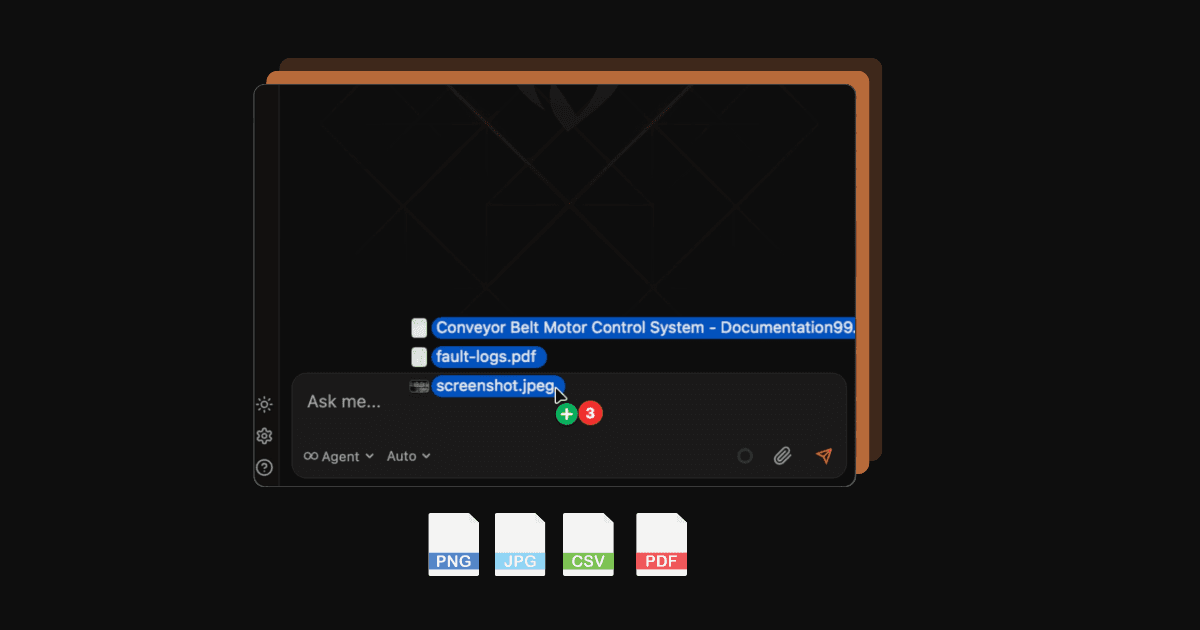
To make diagnostic work faster, PLC Copilot allows you to paste screenshots directly into your chat or attach project documents like VFD manuals, spreadsheets, and PDFs.
Here is a quick look at how you can use these tools in your daily workflow.
1. Direct Screenshot Pasting for Quick Visual Context
You can capture any area of your screen and paste it directly into the conversation using standard keyboard shortcuts (Ctrl+V).
This is especially helpful when dealing with:
- HMI and Drive Error Dialogs: Instead of manually copying down fault codes, paste a screenshot of the alarm box or drive display. The assistant reads the image, identifies the error code, and helps you figure out what triggered it in your logic.
- Ladder Logic Rungs: If a specific network isn't behaving as expected, capture a snippet of the ladder view. You can ask for an explanation of the conditions needed to energize a rung or request help finding missing logic links.
- Wiring Diagrams and I/O Tables: Capture pinouts or terminal references from a panel drawing to cross-reference with your tag assignments.
2. Attaching Datasheets, Logs, and Manuals
Industrial hardware comes with heavy documentation. Searching through a 300-page drive manual just to find a single parameter address or fault description slows down commissioning.
You can drag and drop external files right into the chat window, including:
- PDFs: Equipment manuals, device specs, and technical notes.
- Spreadsheets (CSV/XLSX): I/O lists, tag mappings, and alarm tables.
- Text files and logs: System export files, compiler output, or error logs.
Once attached, you can ask questions that combine your live project logic with the external file. For instance, you can attach a motor drive manual and ask, "Based on this manual, which control word bits do I need to toggle in my output assembly to clear a bus overvoltage fault?"
3. Built for Practical Field Work
We designed image and document attachments to keep you inside your workspace rather than jumping between PDF viewers, image tools, and your IDE.
By combining visual inputs with your actual project context, PLC Copilot can give you specific answers tailored to your exact hardware and logic setup without unnecessary back-and-forth.
Give it a try in your next session by taking a quick screen grab of an error code or dropping in your component datasheet.