
Turn PLC Logic into Controls Narratives and SOPs without Starting from Scratch
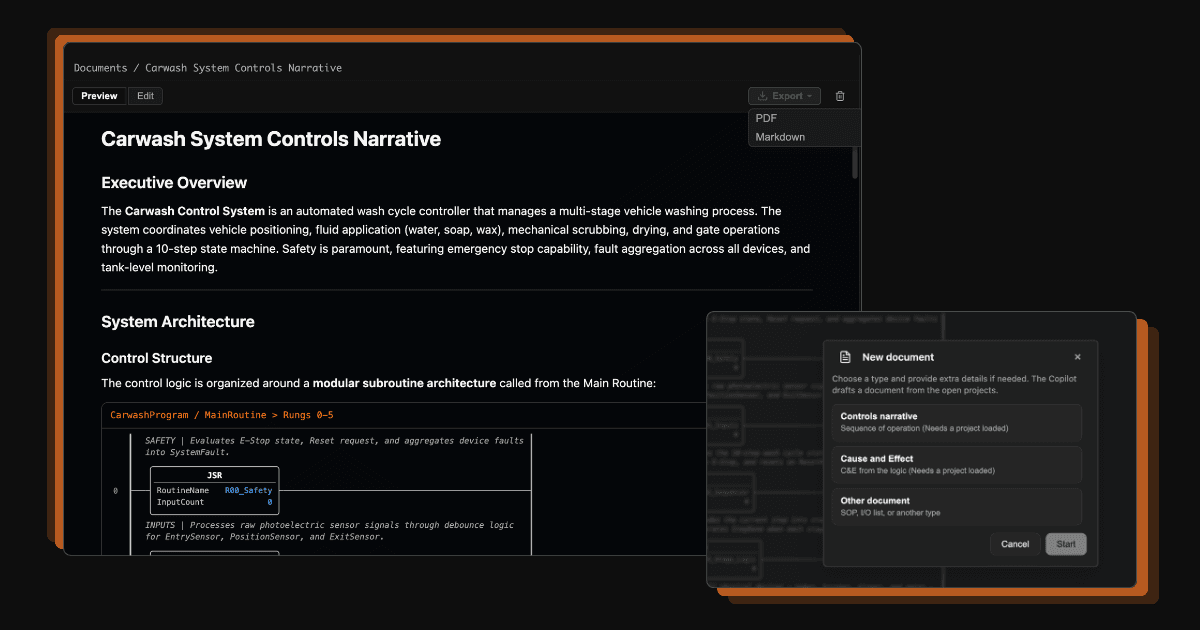

Every controls project eventually reaches the stage where someone asks for documentation. Whether it is a controls narrative for a customer, a cause and effect writeup for a plant audit, or a standard operating procedure for maintenance techs, building these documents by hand takes hours you rarely have at the end of commissioning.
While chat is great for quick troubleshooting, those answers stay inside a single conversation thread.
That is why we built Documents inside PLC Copilot. It gives you a dedicated space to generate long-form, project-grounded technical notes that outlast a quick Q&A turn.
Persistent Notes Grounded in Your Logic
Documents are structured writeups attached directly to your open PLC project. Instead of generic AI summaries, the assistant reads your active routines, tags, and data blocks to build documentation that reflects how your code actually operates.
You can create several standard deliverables right out of the box:
- Controls Narratives: An operational overview explaining how a machine or process works, referencing the underlying logic that drives it.
- Cause and Effect: Concise breakdowns of critical inputs, outputs, interlocks, and fault conditions.
- Custom SOPs and Guides: Describe what you need in plain text, such as a motor startup checklist or a jam-clearing guide for a specific cell, and the assistant drafts it based on your program structure.
How to Create a Document
There are two straightforward ways to start a document:
- From the Documents Sidebar: Open the Documents tab, select a starting type like Controls Narrative or Cause and Effect, add any specific scope notes, and hit start.
- From the Chat: Simply ask for a lasting writeup in natural language, such as "Write an SOP for clearing a fault on Line 3." The assistant recognizes that you want a persistent file rather than a quick chat response and creates the document for you.
Review, Edit, and Export
Generative tools should never produce final engineering sign-offs without oversight. Documents are designed around a simple workflow: the assistant handles the initial draft, and you retain complete control over the final word.
Once a document is generated, you can:
- Read and organize: Browse all your project writeups from the sidebar.
- Edit directly: Adjust text, fix formatting, or add missing context inside the built-in editor. Changes save automatically as you type.
- Export for client handoffs: Convert your document to Markdown or PDF. The PDF export option includes clean cover pages and an automatic table of contents, making it ready to email, print, or store in project repositories like SharePoint.
When to Use Chat vs. Documents
To keep your workspace organized, use each tool for its intended job:
- Use Chat when you need fast answers, quick logic checks, or short debugging help while working through rungs.
- Use Documents when you need a narrative, an SOP, or any reference material that your team or client will need to open again months down the road.
By turning your active program logic into clean first drafts, Documents takes the friction out of technical writing so you can focus on making sure the machine runs safely and reliably.