
How to Use PLC Copilot AI for Productivity Suite Project

AutomationDirect Productivity Suite supports the P1000, P2000, and P3000 PLC series. If you work with Productivity Suite and ladder logic, PLC Copilot can help you understand, debug, and document your programs faster. This guide walks you through using PLC Copilot with your Productivity Suite project from start to finish.
PLC Copilot is a third-party application and is not affiliated with AutomationDirect.
What You Need
Before you begin:
- Create a PLC Copilot account and download the latest release.
- Download the Productivity Suite IDE from the official website.
- Optional: If you don't have your own
.adprofile, download a sample from the official AutomationDirect examples.
PLC Copilot reads your ladder logic from Productivity Suite project files and answers questions about how the logic works, which conditions affect outputs, and why rungs behave the way they do.
Step 1: Sign In to PLC Copilot
After the installation is complete, open PLC Copilot and sign in with your account credentials.
Step 2: Open Your Productivity Suite Project
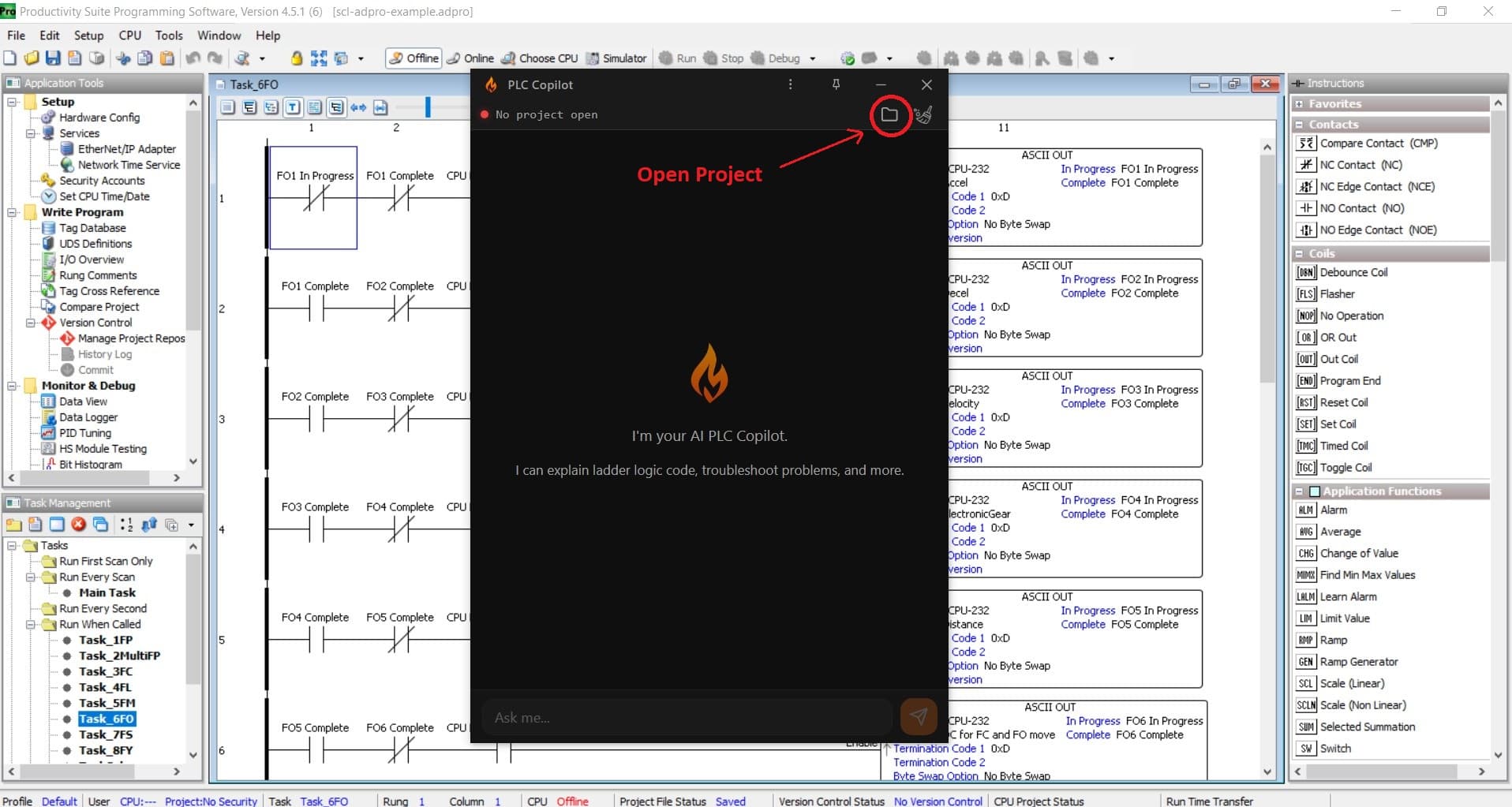
In PLC Copilot, open your AutomationDirect Productivity Suite project file .adpro. PLC Copilot loads and parses your ladder logic so the AI can reference rungs, addresses, and logic flow when you ask questions. Once your project is loaded, the project name appears in the top-left corner.
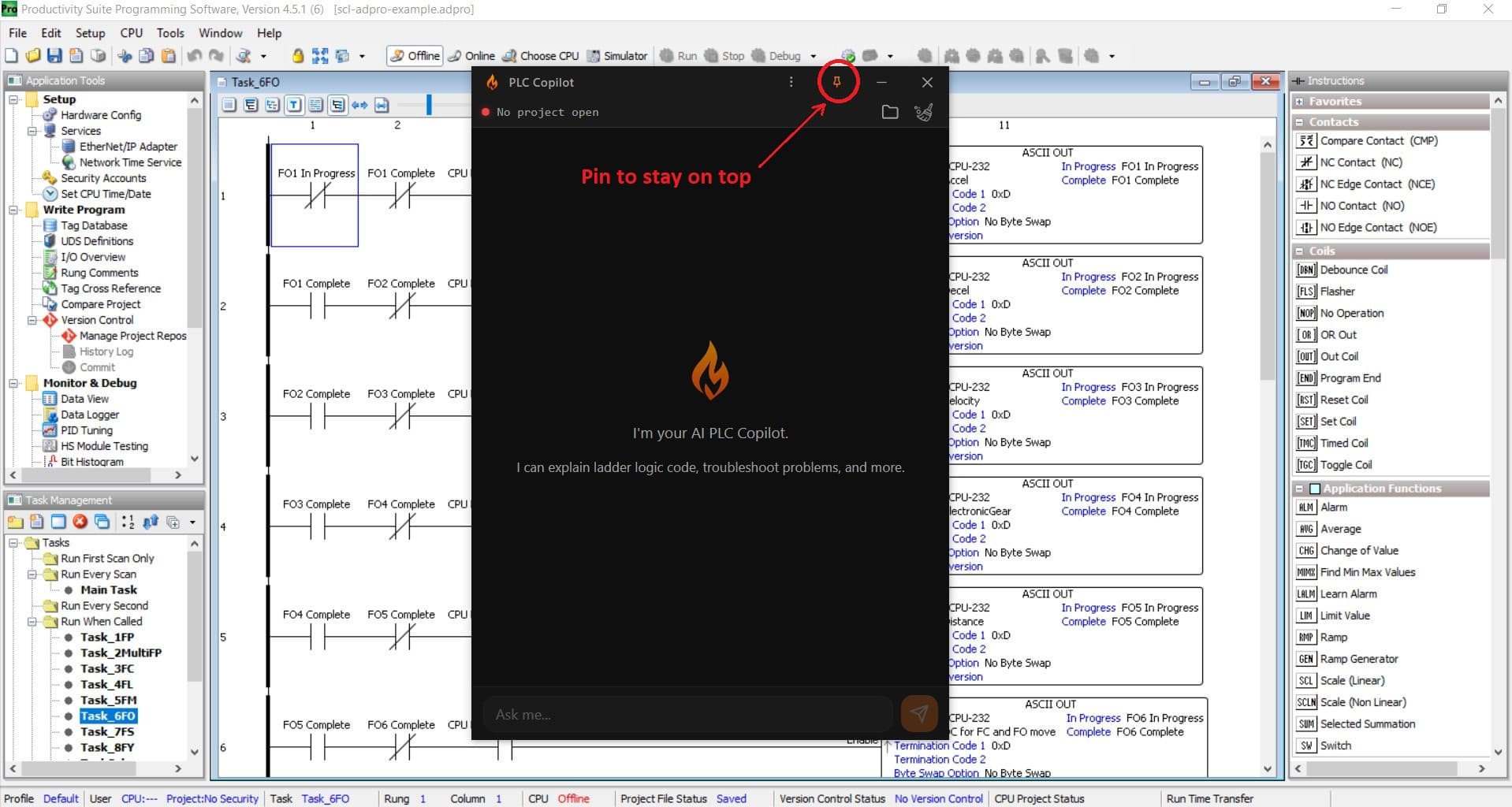
Most users keep the Productivity Suite IDE open while they work and use PLC Copilot for help. Click the pin icon in the top-right corner to keep PLC Copilot on top of your IDE so it stays visible.
Step 3: Ask Questions in Natural Language
Once your project is loaded, use the chat interface to ask anything about your program. The AI is tuned for ladder logic and Productivity Suite projects, so you can ask in plain English. For example:
- "What controls the VFD frequency output?"
- "Why isn't the gate energizing?"
- "How does the alarms subroutine work?"
- "Which conditions can prevent this motor from starting?"
The AI can point you to specific rungs and explain logic paths so you spend less time clicking through routines and more time fixing or improving the program.
Step 4: PLC Copilot Tracks Changes as You Work on Ladder Logic
PLC Copilot stays in sync with your project. When you edit your ladder logic in the Productivity Suite IDE and save your changes, PLC Copilot automatically picks up the updates. You don't need to reload the project or restart the app. Just keep working and ask new questions based on the latest code. That makes it easy to iterate: change rungs, save, then ask the AI to explain or debug the updated logic.
How to Use PLC Copilot for Code Review
Use PLC Copilot like you would talk to a colleague: ask how any section of logic works in plain language. The more context you give, e.g. which rung or task you mean, what you're trying to verify, or what part of the machine or process it affects, the more accurate and useful the answer. You get explanations of logic flow and conditions, with references to the relevant rungs, so you can verify behavior or onboard others quickly. Use it to double-check interlocks, trace input-to-output paths, or confirm that a routine matches your design before handing it off.
How to Use PLC Copilot for Debugging Productivity Suite Code
When something doesn't behave as expected, describe the symptoms to the AI. For example you can ask, "The light02 turns on and the conveyor-A runs fine, but the gate doesn't open, find the potential route causes." The AI can walk through logic paths, explain why conditions aren't met, and suggest what to check or change. Tell it which rung or output is wrong, and it will help you find missing conditions, stuck bits, or logic that never energizes.
How to Use PLC Copilot for Documentation
Ask for summaries of routines, I/O usage, or overall behavior. You can build internal docs or handoff notes in minutes. Request explanations of subroutines, I/O maps, or sequence logic, and use the answers to update your project docs or training materials.
Get Help or Give Feedback
If you run into issues or want to suggest improvements, reach out to us using the contact form. Including screenshots or a short description of what you did helps us respond faster and improve the product.
PLC Copilot is a third-party application and is not affiliated with AutomationDirect. PLC Copilot is an assistive tool intended to help you understand and work with ladder logic. It is not a substitute for professional judgment, safety review, or compliance verification. Always verify critical logic, interlocks, and safety-related code before deployment.