
How to Use PLC Copilot AI with Rockwell Studio 5000

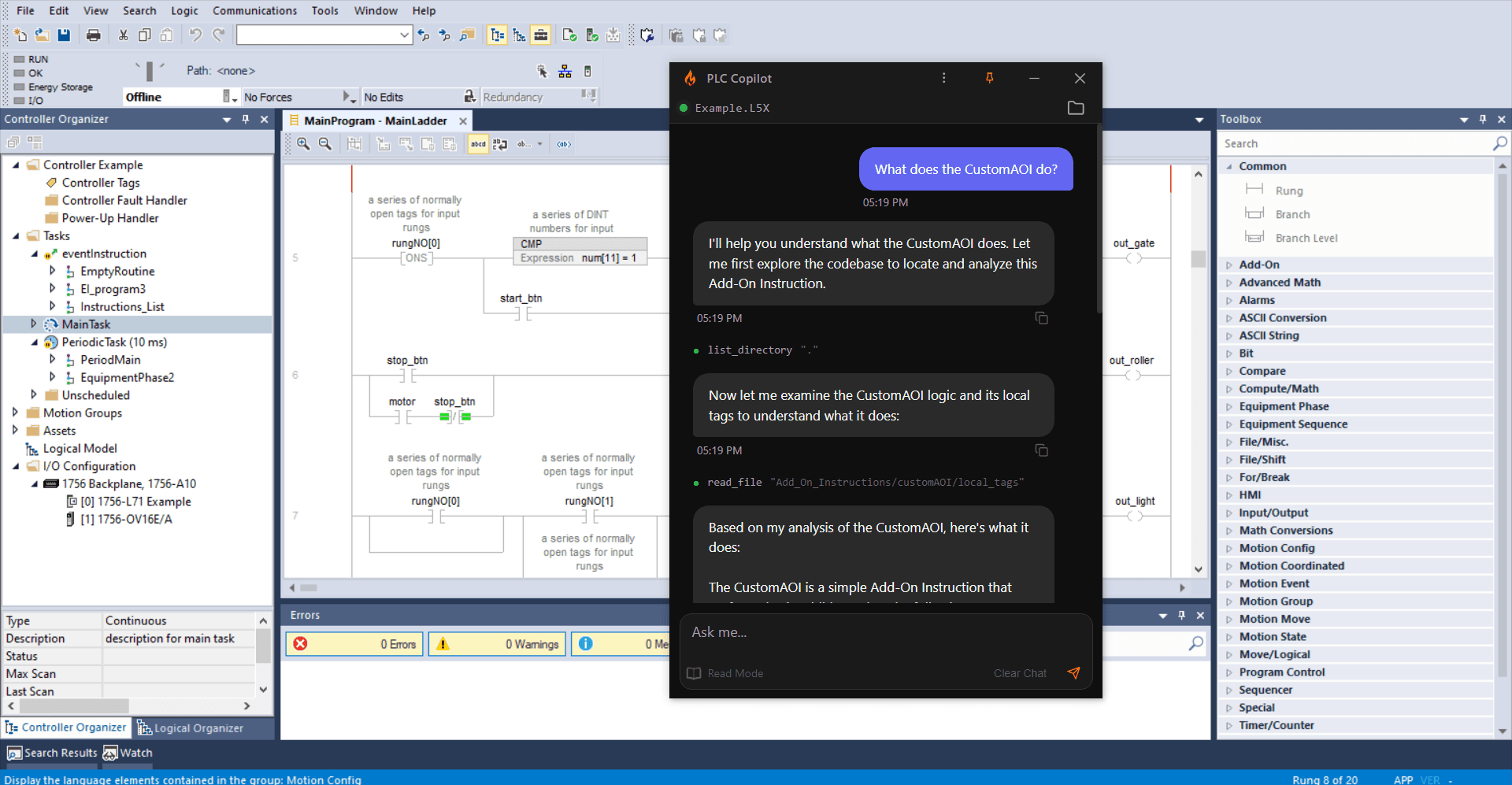
Rockwell Automation Studio 5000 Logix Designer is used for programming CompactLogix, ControlLogix, GuardLogix, and other Logix 5000 controllers. If you work with ladder logic (RLL) or Structured Text in Logix Designer, PLC Copilot can help you explain inherited logic, debug interlocks, document rungs and tags, and generate validated ladder grounded in your controller tags when a .L5X is loaded.
This guide walks through the Studio 5000 workflow from export to chat to bringing proposed logic back into Logix Designer. For capabilities and download, see PLC Copilot for Studio 5000.
PLC Copilot is an independent application and is not affiliated with Rockwell Automation or Allen-Bradley.
What You Need
Before you begin:
- Create a PLC Copilot account and download the latest release.
- Have Studio 5000 Logix Designer installed (part of the Studio 5000 suite).
PLC Copilot works from an offline controller-level .L5X export. It does not connect to the live controller. You export from Logix Designer, load the file in PLC Copilot, and bring any accepted proposals back into your ACD project through normal Studio 5000 import paths.
Step 1: Sign In to PLC Copilot
After installation, open PLC Copilot and sign in with your account credentials.
Step 2: Open Your Studio 5000 Project
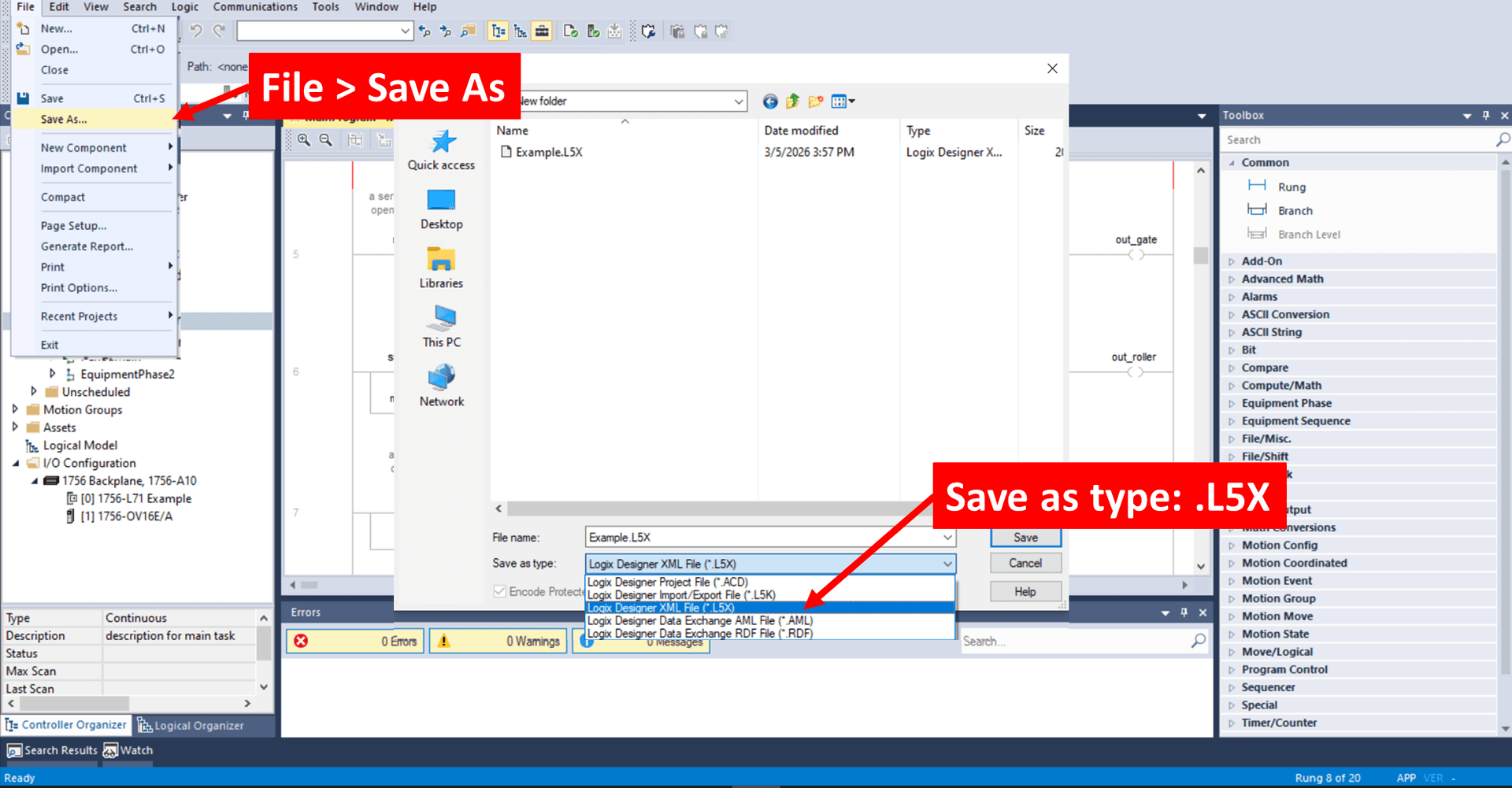
PLC Copilot reads .L5X exports. In Logix Designer: File → Save As, choose L5X as the file type, and save the controller export.
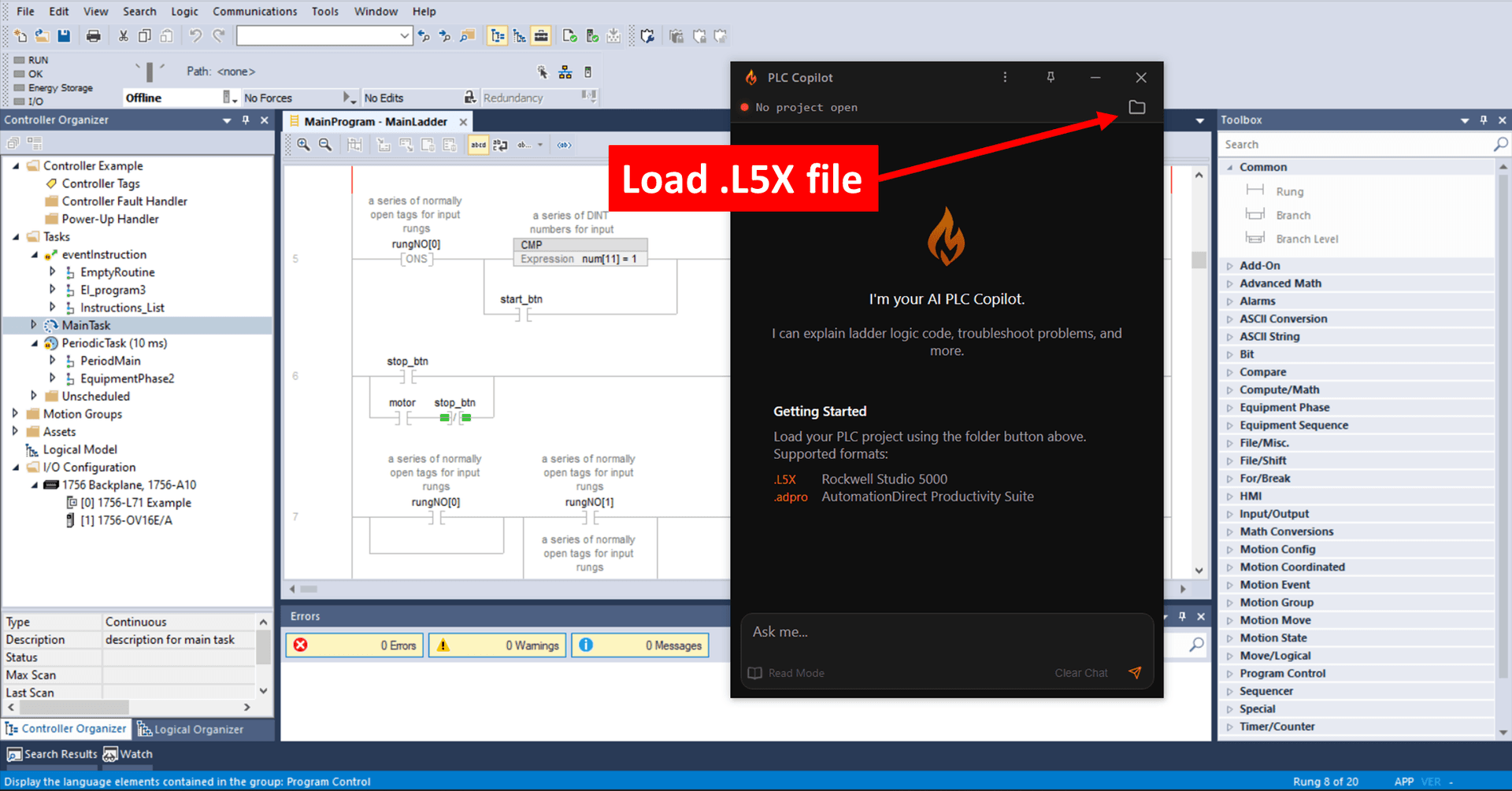
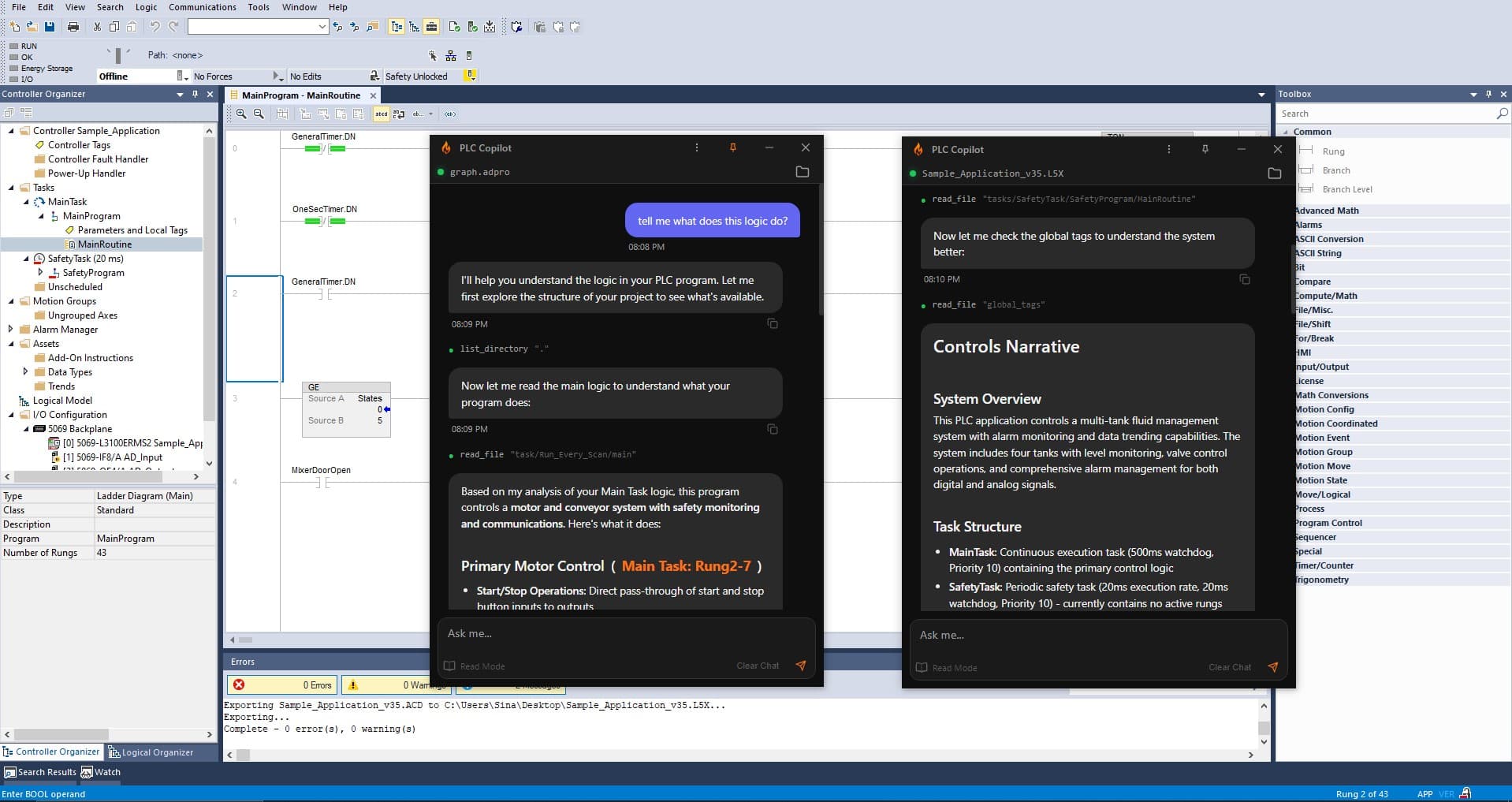
In PLC Copilot, open that .L5X. The app parses routines, rungs, tags, and program structure so answers reference your actual Logix project. When the load completes, the project name appears in the top-left with a green indicator.
PLC Copilot is tuned for Studio 5000 version 38 export format. For best results, export from v38. Projects older than v33 are not supported.
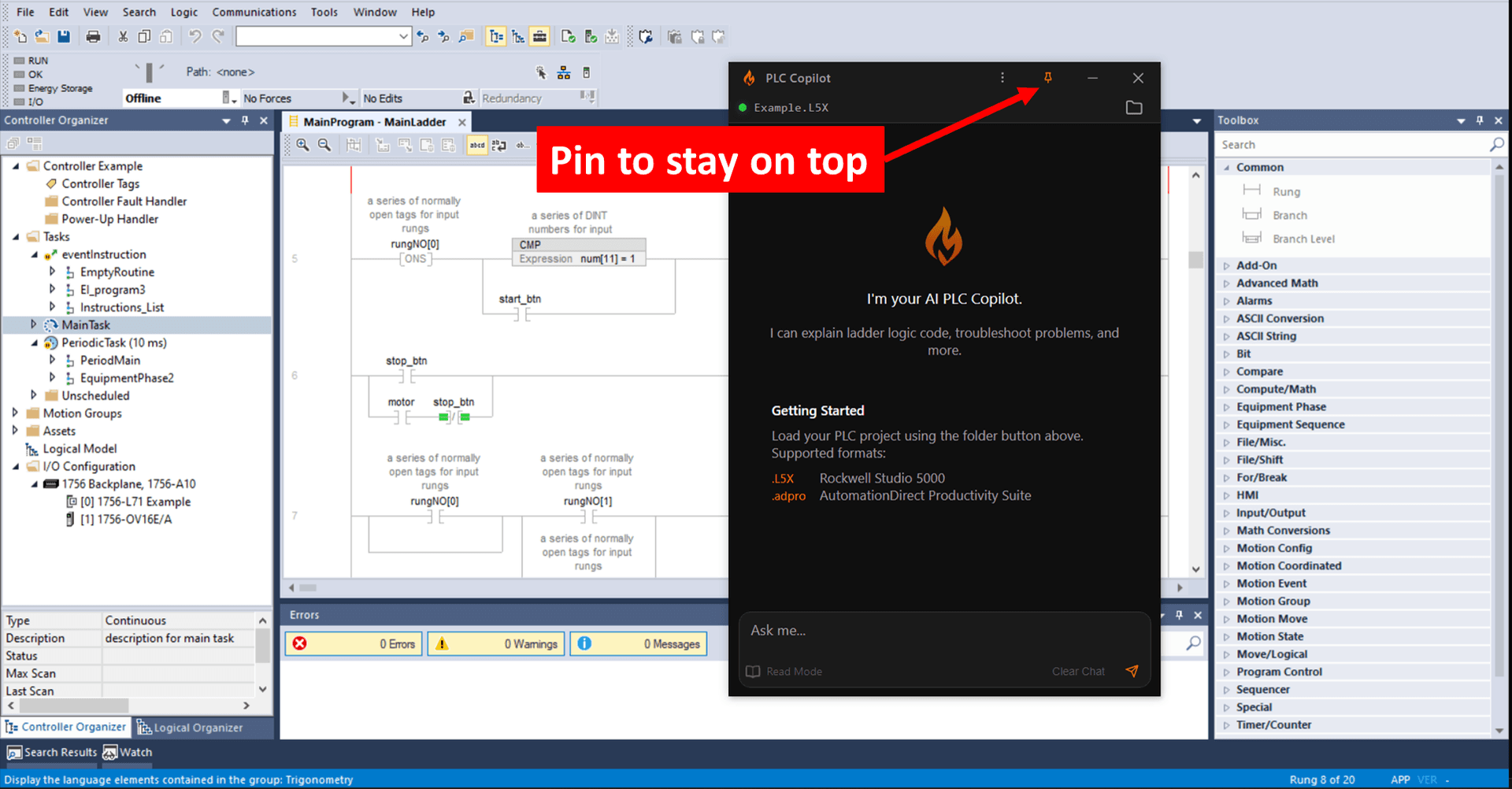
Most engineers keep Logix Designer open beside PLC Copilot. Use the pin icon (top-right) to keep PLC Copilot on top while you edit routines.
Step 3: Ask Questions in Natural Language
With your .L5X loaded, ask about ladder (RLL), Structured Text routines, tags, tasks, and equipment phases. The assistant resolves aliases, cites rungs, and can search across the project. Example prompts:
- "Which tags have to be true for
Valve_Opento energize?" - "What sets the pump run permit?"
- "Why doesn't
HMI_Startlatch?" - "Explain how
MainRoutinescan order affects this interlock." - "Where is
Tank_Levelused in the program?"
Answers reference specific rungs and routines so you spend less time hunting through Logix Designer and more time fixing logic.
Step 4: Generate Ladder Logic for Logix Designer
Most controls work on the plant floor is still ladder (RLL), not ST. Generic coding assistants default to text languages and struggle with rung-based Logix syntax. PLC Copilot is built for Rockwell ladder: describe a sequence in plain English and get a validated ladder proposal before it is shown to you.
With a project loaded, generation can use your real controller and program tags. You can also start from an empty chat session and describe greenfield logic; output follows Studio 5000 ladder conventions.
Typical flow:
- Describe the routine (motor start/stop, permissives, timer, latch fault, and so on).
- Review the proposed rungs in PLC Copilot, including referral diagrams where shown.
- Copy the accepted ladder and paste as Neutral Text into the target routine in Logix Designer.
- Compile, simulate, and verify in Studio 5000 before download to the controller.
PLC Copilot proposes logic. It does not write into your ACD or .L5X file. You stay in control of what goes into production.
For Structured Text routines in a mixed program, PLC Copilot can read and explain ST and propose ST blocks in chat. Verify and compile in Logix Designer before deploy. Validated generation is ladder-first on the Rockwell workflow.
Step 5: Keep PLC Copilot in Sync with Your Logix Project
After you change logic in Studio 5000, save and re-export the .L5X to the same path. PLC Copilot reloads automatically so the chat sees your latest rungs and tags. The green indicator may turn yellow briefly while the new export loads.
Working on Multiple Projects Simultaneously
You can run two or more PLC Copilot windows, each with a different .L5X. Useful when comparing machines, keeping a reference CompactLogix project open while you edit another, or switching between customer exports without closing one session.
Launch PLC Copilot again from the desktop shortcut. Each instance has its own workspace. Pin, chat, and re-export per project independently.
Code Review in Studio 5000 Projects
Name the routine, task, or process area, then ask your question. PLC Copilot returns logic flow with rung and tag references so you can validate interlocks, trace signal paths, or confirm a sequence matches the intended behavior before FAT. Strong when reviewing with a teammate or preparing a handoff.
Debugging Logix Designer Logic
Describe the fault and where it shows up. Example: "The pump won't run when I press Start; the sequence stops at step 3." The assistant follows ladder conditions, explains which permissives are false, and points to tags or rungs to check. The more context you give (routine name, tag, HMI handshake), the tighter the answer.
Documentation, Tags, and Comments
Ask for routine overviews, tag cross-references, AOI parameter summaries, or equipment-phase sequence explanations. Use the answers in project docs, handoff notes, or training material.
You can also ask PLC Copilot to propose tag descriptions and rung comments, then export a Studio 5000 tags and comments CSV and import through Tools → Import → Tags and Comments in Logix Designer. That keeps the controller database documented without retyping every alias and comment by hand.
Get Started
Download PLC Copilot and load your .L5X export, or visit PLC Copilot for Studio 5000 for Rockwell-specific features and signup.
Get Help or Give Feedback
Issues or ideas: contact form. Screenshots and a short description of what you exported or pasted help us respond faster.
PLC Copilot is a third-party application and is not affiliated with Rockwell Automation or Allen-Bradley. It is an assistive tool for understanding and working with ladder logic. It is not a substitute for professional judgment, safety review, or compliance verification. Always verify critical logic, interlocks, and safety-related code in Studio 5000 before deployment.